> ## Documentation Index
> Fetch the complete documentation index at: https://futureagi.mintlify.site/llms.txt
> Use this file to discover all available pages before exploring further.
# Quickstart
> Understanding components of Agent Compass
### Setting up the code
In this walkthrough, we'll be leveraging the [Google ADK integration](/future-agi/integrations/google_adk). Let's create a virtual env first
**Note:** Use python3.12 to create virtual environments
```bash theme={null}
python3.12 -m venv env
```
This creates a virtual environment with name `env`. Activate it using the following command in your terminal
```bash theme={null}
source env/bin/activate
```
Once your virtual environment is active, you can run the following command to install all the necessary requirements for this walkthrough
```bash theme={null}
pip install traceai-google-adk
```
Now, create a python script (say `google_adk_futureagi.py`) at your desired location and start by setting up the environment variables and imports
```python theme={null}
import asyncio
import os
import sys
from typing import Optional
from google.adk.agents import Agent
from google.adk.runners import Runner, RunConfig
from google.adk.artifacts.in_memory_artifact_service import InMemoryArtifactService
from google.adk.sessions.in_memory_session_service import InMemorySessionService
from google.adk.memory.in_memory_memory_service import InMemoryMemoryService
from google.adk.auth.credential_service.in_memory_credential_service import InMemoryCredentialService
from google.genai import types
# Set up environment variables
os.environ["FI_API_KEY"] = "your-futureagi-api-key"
os.environ["FI_SECRET_KEY"] = "your-futureagi-secret-key"
os.environ["FI_BASE_URL"] = "https://api.futureagi.com"
os.environ['GOOGLE_API_KEY'] = 'your-google-api-key'
```
Initialize your trace provider and instrument Google ADK
```python theme={null}
from fi_instrumentation import register
from fi_instrumentation.fi_types import ProjectType
from traceai_google_adk import GoogleADKInstrumentor
from fi_instrumentation import Transport
tracer_provider = register(
project_name="google-adk-new",
project_type=ProjectType.OBSERVE,
transport=Transport.HTTP
)
GoogleADKInstrumentor().instrument(tracer_provider=tracer_provider)
```
Create your multi-agent system. First, let's define the planner agent:
```python theme={null}
planner_agent = Agent(
name="planner_agent",
model="gemini-2.5-flash",
description="Decomposes requests into a clear plan and collects missing requirements.",
instruction="""You are a planning specialist.
Responsibilities:
- Clarify the user's goal and constraints with 1-3 concise questions if needed.
- Produce a short plan with numbered steps and deliverables.
- Include explicit assumptions if any details are missing.
- End with 'Handoff Summary:' plus a one-paragraph summary of the plan and next agent.
- Transfer back to the parent agent without saying anything else."""
)
```
Define the researcher agent:
```python theme={null}
researcher_agent = Agent(
name="researcher_agent",
model="gemini-2.5-flash",
description="Expands plan steps into structured notes using internal knowledge (no tools).",
instruction="""You are a content researcher.
Constraints: do not fetch external data or cite URLs; rely on prior knowledge only.
Steps:
- Read the plan and assumptions.
- For each plan step, create structured notes (bullets) and key talking points.
- Flag uncertainties as 'Assumptions' with brief rationale.
- End with 'Handoff Summary:' and recommend sending to the critic next.
- Transfer back to the parent agent without saying anything else."""
)
```
Define the critic agent:
```python theme={null}
critic_agent = Agent(
name="critic_agent",
model="gemini-2.5-flash",
description="Reviews content for clarity, completeness, and logical flow.",
instruction="""You are a critical reviewer.
Steps:
- Identify issues in clarity, structure, correctness, and style.
- Provide a concise list of actionable suggestions grouped by category.
- Do not rewrite the full content; focus on improvements.
- End with 'Handoff Summary:' suggesting the writer produce the final deliverable.
- Transfer back to the parent agent without saying anything else."""
)
```
Define the writer agent:
```python theme={null}
writer_agent = Agent(
name="writer_agent",
model="gemini-2.5-flash",
description="Synthesizes a polished final deliverable from notes and critique.",
instruction="""You are the final writer.
Steps:
- Synthesize the final deliverable in a clean, structured format.
- Incorporate the critic's suggestions.
- Keep it concise, high-signal, and self-contained.
- End with: 'Would you like any changes or a different format?'
- Transfer back to the parent agent without saying anything else."""
)
```
Create the root orchestrator agent:
```python theme={null}
root_agent = Agent(
name="root_agent",
model="gemini-2.5-flash",
global_instruction="""You are a collaborative multi-agent orchestrator.
Coordinate Planner → Researcher → Critic → Writer to fulfill the user's request without using any external tools.
Keep interactions polite and focused. Avoid unnecessary fluff.""",
instruction="""Process:
- If needed, greet the user briefly and confirm their goal.
- Transfer to planner_agent to draft a plan.
- Then transfer to researcher_agent to expand the plan into notes.
- Then transfer to critic_agent to review and propose improvements.
- Finally transfer to writer_agent to produce the final deliverable.
- After the writer returns, ask the user if they want any changes.
Notes:
- Do NOT call any tools.
- At each step, ensure the child agent includes a 'Handoff Summary:' to help routing.
- If the user asks for changes at any time, route back to the appropriate sub-agent (planner or writer).
""",
sub_agents=[planner_agent, researcher_agent, critic_agent, writer_agent]
)
```
Create the main execution function:
```python theme={null}
async def run_once(message_text: str, *, app_name: str = "agent-compass-demo", user_id: str = "user-1", session_id: Optional[str] = None) -> None:
runner = Runner(
app_name=app_name,
agent=root_agent,
artifact_service=InMemoryArtifactService(),
session_service=InMemorySessionService(),
memory_service=InMemoryMemoryService(),
credential_service=InMemoryCredentialService(),
)
# Initialize a session
session = await runner.session_service.create_session(
app_name=app_name,
user_id=user_id,
session_id=session_id,
)
content = types.Content(role="user", parts=[types.Part(text=message_text)])
# Stream events asynchronously from the agent
async for event in runner.run_async(
user_id=session.user_id,
session_id=session.id,
new_message=content,
run_config=RunConfig(),
):
if getattr(event, "content", None) and getattr(event.content, "parts", None):
text = "".join((part.text or "") for part in event.content.parts)
if text:
author = getattr(event, "author", "agent")
print(f"[{author}]: {text}")
await runner.close()
```
Create the main function with sample prompts:
```python theme={null}
async def main():
prompts = [
"Explain the formation and characteristics of aurora borealis (northern lights).",
"Describe how hurricanes form and what makes them so powerful.",
"Explain the process of photosynthesis in plants and its importance to life on Earth.",
"Describe how earthquakes occur and why some regions are more prone to them.",
"Explain the water cycle and how it affects weather patterns globally."
]
for prompt in prompts:
await run_once(
prompt,
app_name="agent-compass-demo",
user_id="user-1",
)
if __name__ == "__main__":
asyncio.run(main())
```
Run your script:
```bash theme={null}
python3 google_adk_futureagi.py
```
Upon successful execution of the script, we see that a new project with the name of `google-adk-new` has been added in the `Observe` tab of the platform.
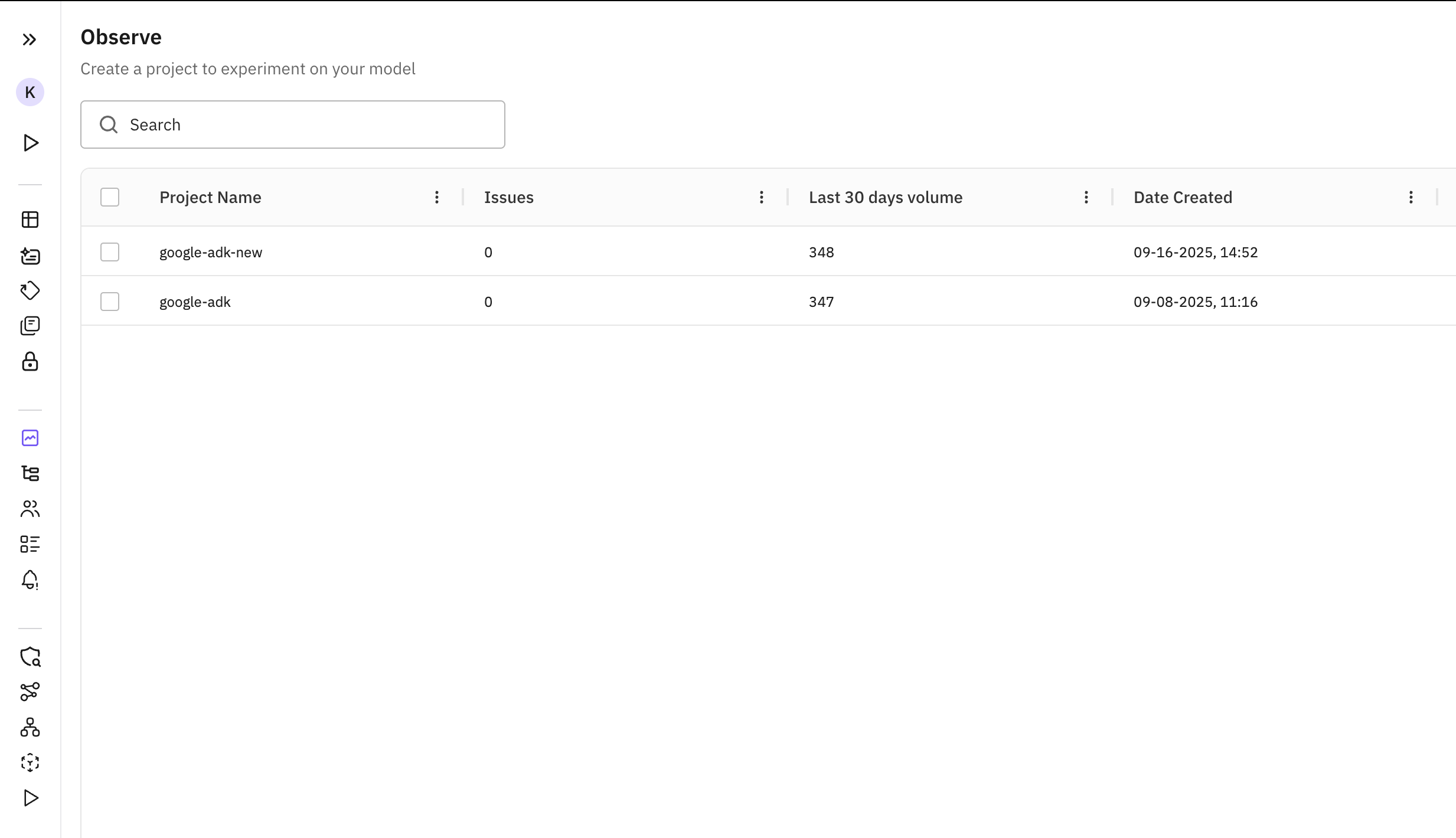 When you click on the first project, you get directed to the LLM Tracing view where all the traces of your observe project are listed.
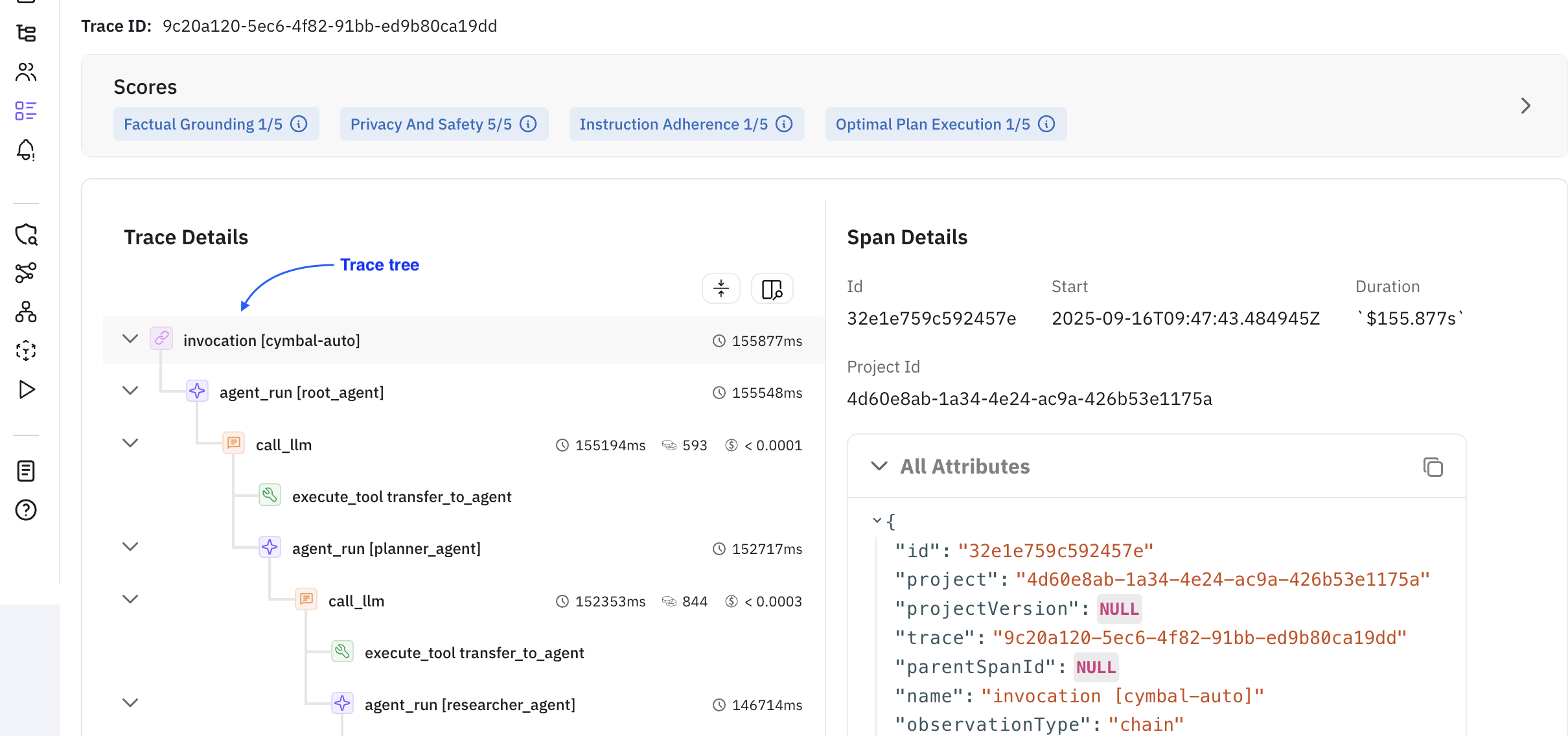
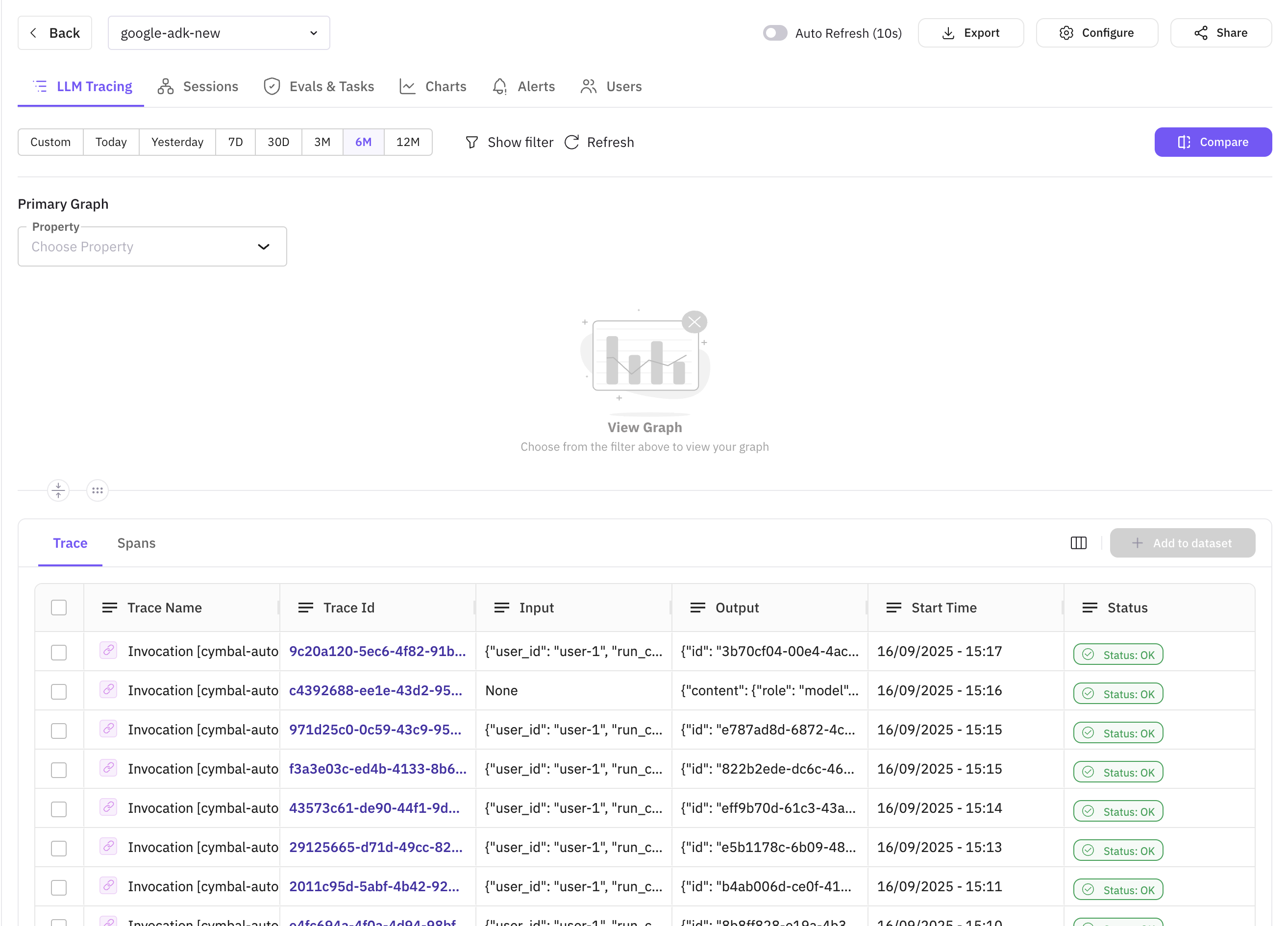 Upon clicking of a trace, a drawer opens up that shows the trace tree and the details of the span selected. On top of them, the insights generated from **Agent Compass** are also shown in a collapsible accordion. You can toggle to see the expanded view of the same
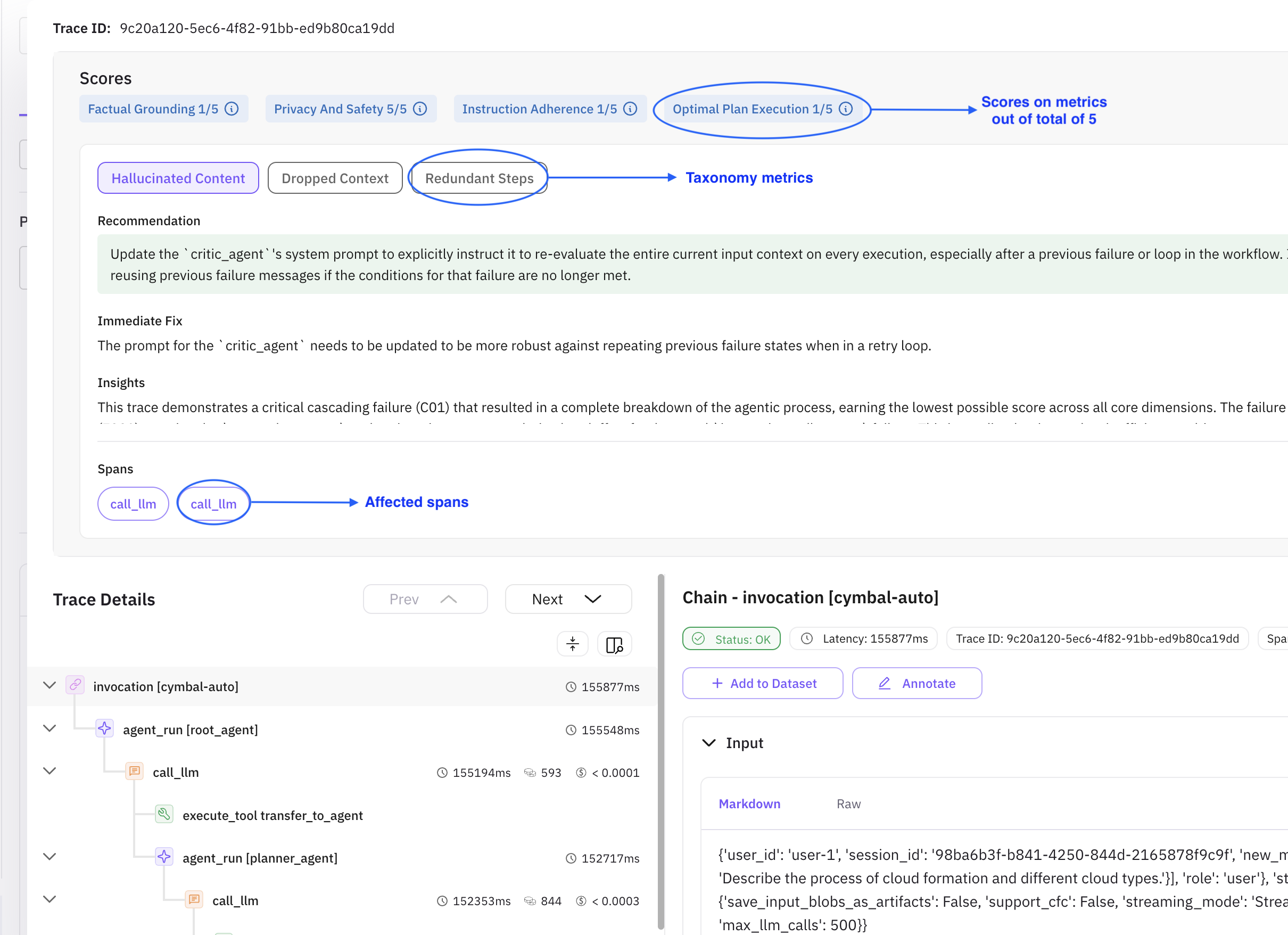 Inside the accordion are other headings each with their separate meaning. You will see these terms being used frequently. They should be interpreted as follows
#### Scores
Each of the metrics mentioned are the grounds on which the agent performance is evaluated out of a score of 5. They are as follows
| Metric Name | Description |
| -------------------------- | ------------------------------------------------------------------------------------------------------------------------------------------------------------------------------- |
| **Factual Grounding** | Measures how well agent responses are anchored in verifiable evidence from tools, context, or data sources, avoiding hallucinations and ensuring claims are properly supported. |
| **Privacy and Safety** | Assesses adherence to security practices and ethical guidelines, identifying risks like PII exposure, credential leaks, unsafe advice, bias, and insecure API usage patterns. |
| **Instruction Adherence** | Evaluates how well the agent follows user instructions, formatting requirements, tone specifications, and prompt guidelines while understanding core user intent correctly. |
| **Optimal Plan Execution** | Measures the agent's ability to structure multi-step workflows logically, maintaining goal coherence, proper step sequencing, and effective coordination of tools and actions. |
Inside the accordion are other headings each with their separate meaning. You will see these terms being used frequently. They should be interpreted as follows
#### Scores
Each of the metrics mentioned are the grounds on which the agent performance is evaluated out of a score of 5. They are as follows
| Metric Name | Description |
| -------------------------- | ------------------------------------------------------------------------------------------------------------------------------------------------------------------------------- |
| **Factual Grounding** | Measures how well agent responses are anchored in verifiable evidence from tools, context, or data sources, avoiding hallucinations and ensuring claims are properly supported. |
| **Privacy and Safety** | Assesses adherence to security practices and ethical guidelines, identifying risks like PII exposure, credential leaks, unsafe advice, bias, and insecure API usage patterns. |
| **Instruction Adherence** | Evaluates how well the agent follows user instructions, formatting requirements, tone specifications, and prompt guidelines while understanding core user intent correctly. |
| **Optimal Plan Execution** | Measures the agent's ability to structure multi-step workflows logically, maintaining goal coherence, proper step sequencing, and effective coordination of tools and actions. |
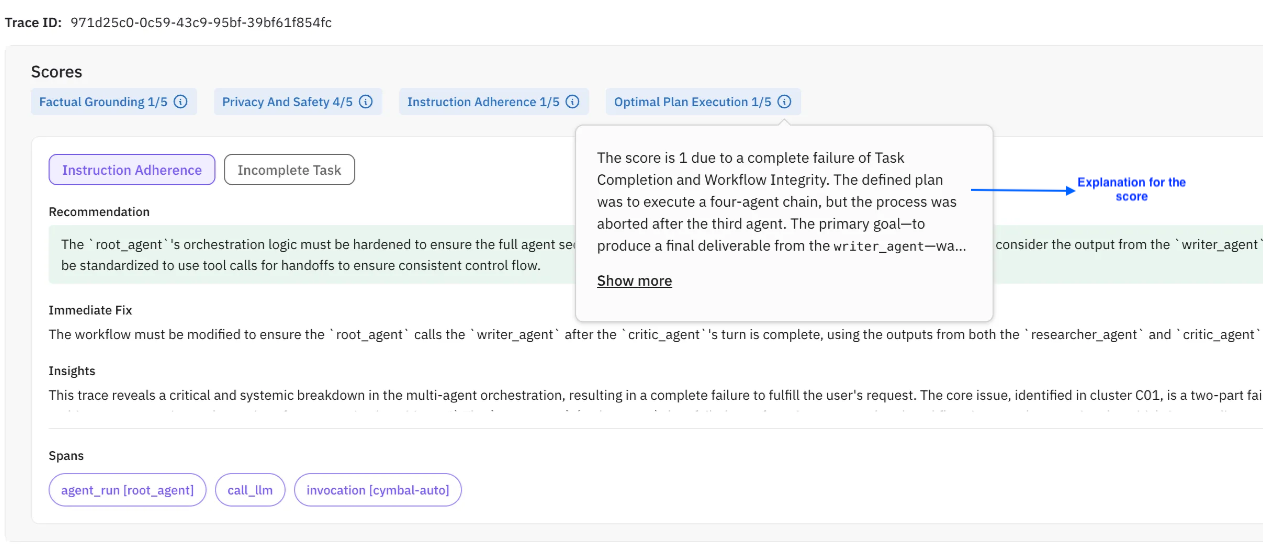 #### Clickable metrics
These are the [taxonomy metrics](/future-agi/products/agent-compass/taxonomy). They indicate under which metric your agent needs improvement and are decided by the compass itself (ex: Instruction Adherence, Incomplete task etc.)
#### Recommendation
This is a suggestion from the perspective of implementing a long term and robust fix. The recommendation may not always be the same as an immediate fix. In most of the cases, proceeding with the recommendation would be the best course of action
#### Immediate fix
This suggests a minimal functional fix. This fix may or may not necessarily align with the recommendation
#### Insights
Insights are high level overview of the complete trace execution. They do not change with the currently active [taxonomy metric](/future-agi/products/agent-compass/taxonomy) and give a bird's eye view of what your agent did during execution
#### Description
The description conveys what went wrong during the agentic exection. It also answers what happened in the error
#### Evidence
Evidences are the supporting snippets from the LLM response that was generated during the agentic executions. They can help you uncover edge cases/unforeseen scenarios that might've been missed during the development phase
#### Root Causes
Indicates the underlying issue of an error occurence. This helps developers gain a better understanding of their agentic workflows
#### Spans
The list of affected spans. Each [taxonomy metric](/future-agi/products/agent-compass/taxonomy) can have different spans associated with it. You can click on the span to spot it in the trace tree
#### Sampling Rate
This is a special, user controlled parameter. It refers to what percentage of traces should the compass run on. Based on the sampling rate, the compass picks up traces at random to generate insights. Sampling rate can be configured in two simple steps mentioned below
#### Clickable metrics
These are the [taxonomy metrics](/future-agi/products/agent-compass/taxonomy). They indicate under which metric your agent needs improvement and are decided by the compass itself (ex: Instruction Adherence, Incomplete task etc.)
#### Recommendation
This is a suggestion from the perspective of implementing a long term and robust fix. The recommendation may not always be the same as an immediate fix. In most of the cases, proceeding with the recommendation would be the best course of action
#### Immediate fix
This suggests a minimal functional fix. This fix may or may not necessarily align with the recommendation
#### Insights
Insights are high level overview of the complete trace execution. They do not change with the currently active [taxonomy metric](/future-agi/products/agent-compass/taxonomy) and give a bird's eye view of what your agent did during execution
#### Description
The description conveys what went wrong during the agentic exection. It also answers what happened in the error
#### Evidence
Evidences are the supporting snippets from the LLM response that was generated during the agentic executions. They can help you uncover edge cases/unforeseen scenarios that might've been missed during the development phase
#### Root Causes
Indicates the underlying issue of an error occurence. This helps developers gain a better understanding of their agentic workflows
#### Spans
The list of affected spans. Each [taxonomy metric](/future-agi/products/agent-compass/taxonomy) can have different spans associated with it. You can click on the span to spot it in the trace tree
#### Sampling Rate
This is a special, user controlled parameter. It refers to what percentage of traces should the compass run on. Based on the sampling rate, the compass picks up traces at random to generate insights. Sampling rate can be configured in two simple steps mentioned below
**Note:** The adjusted/updated sampling rate will be applicable for upcoming traces only and not on the currently present or previously added traces
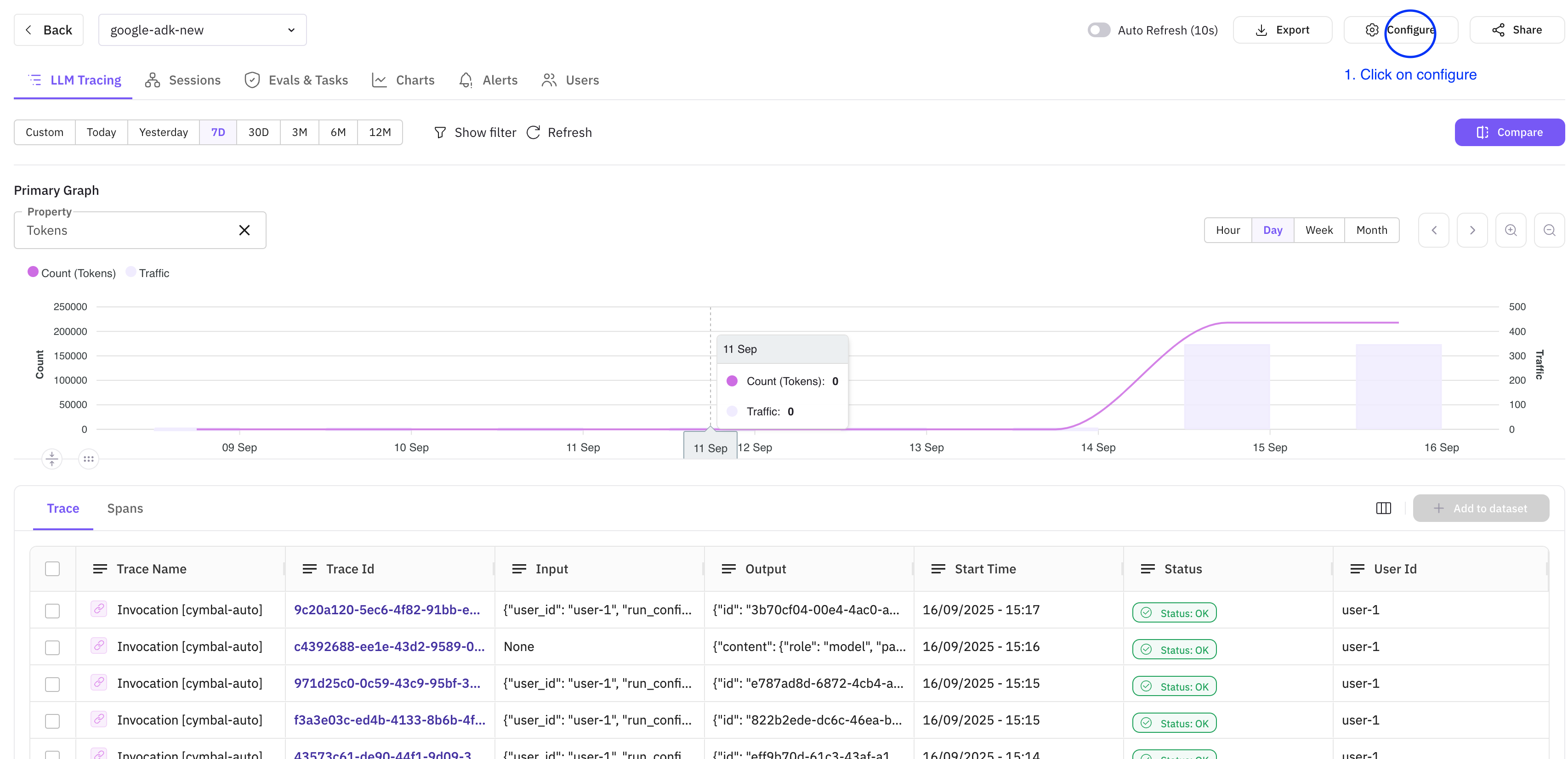
* **Step 1:** Click on configure button on the top right corner of the observe screen
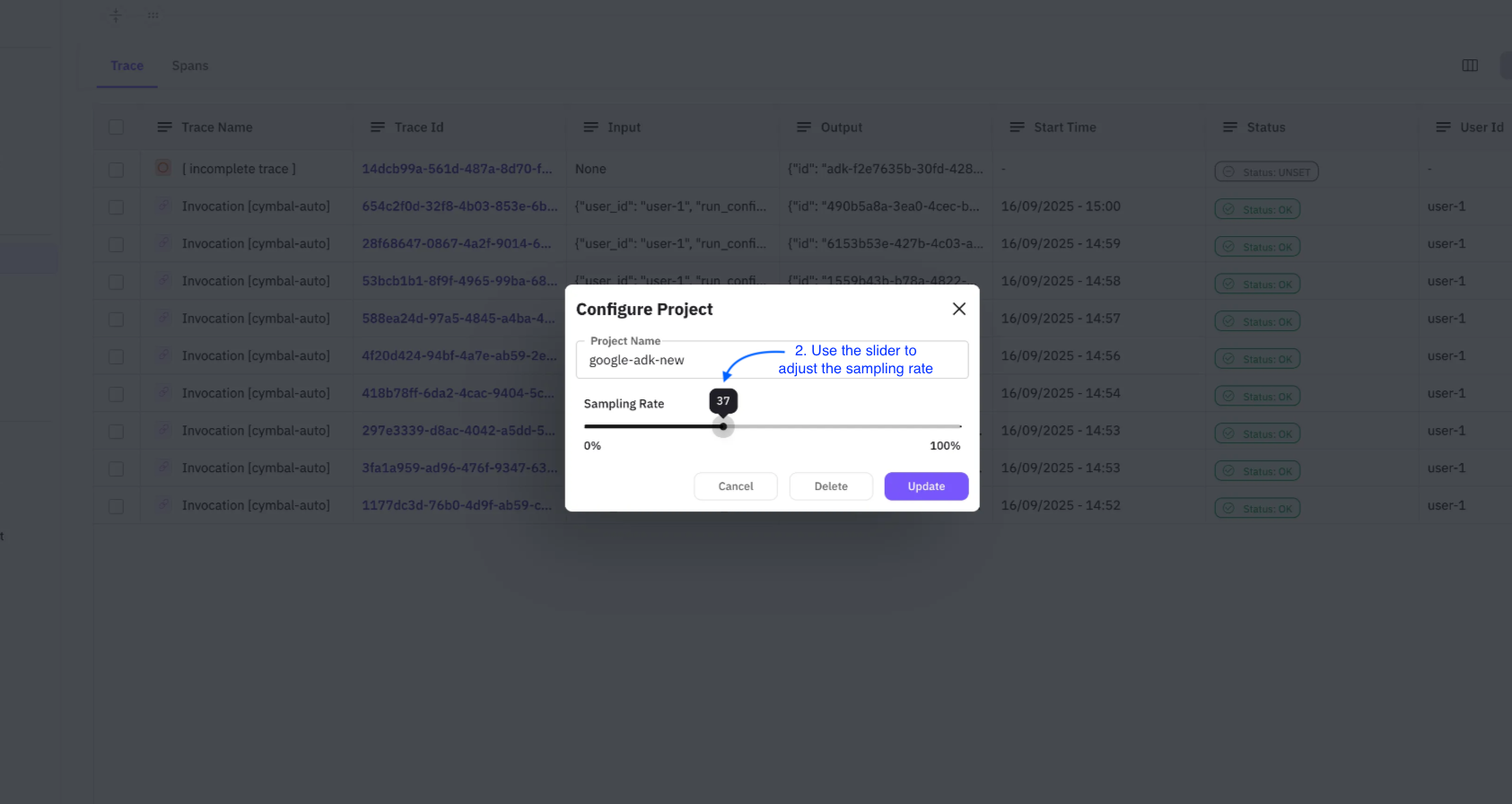
 * **Step 2:** Use the slider to adjust the sampling rate according to your needs. Click on update to save
 ### Feed Tab
All the errors identified by the compass are grouped together and can be viewed under the `Feed` tab of the platform. The Feed tab shows all the errors identified by the compass in one place. The screen of the same looks like this
### Feed Tab
All the errors identified by the compass are grouped together and can be viewed under the `Feed` tab of the platform. The Feed tab shows all the errors identified by the compass in one place. The screen of the same looks like this
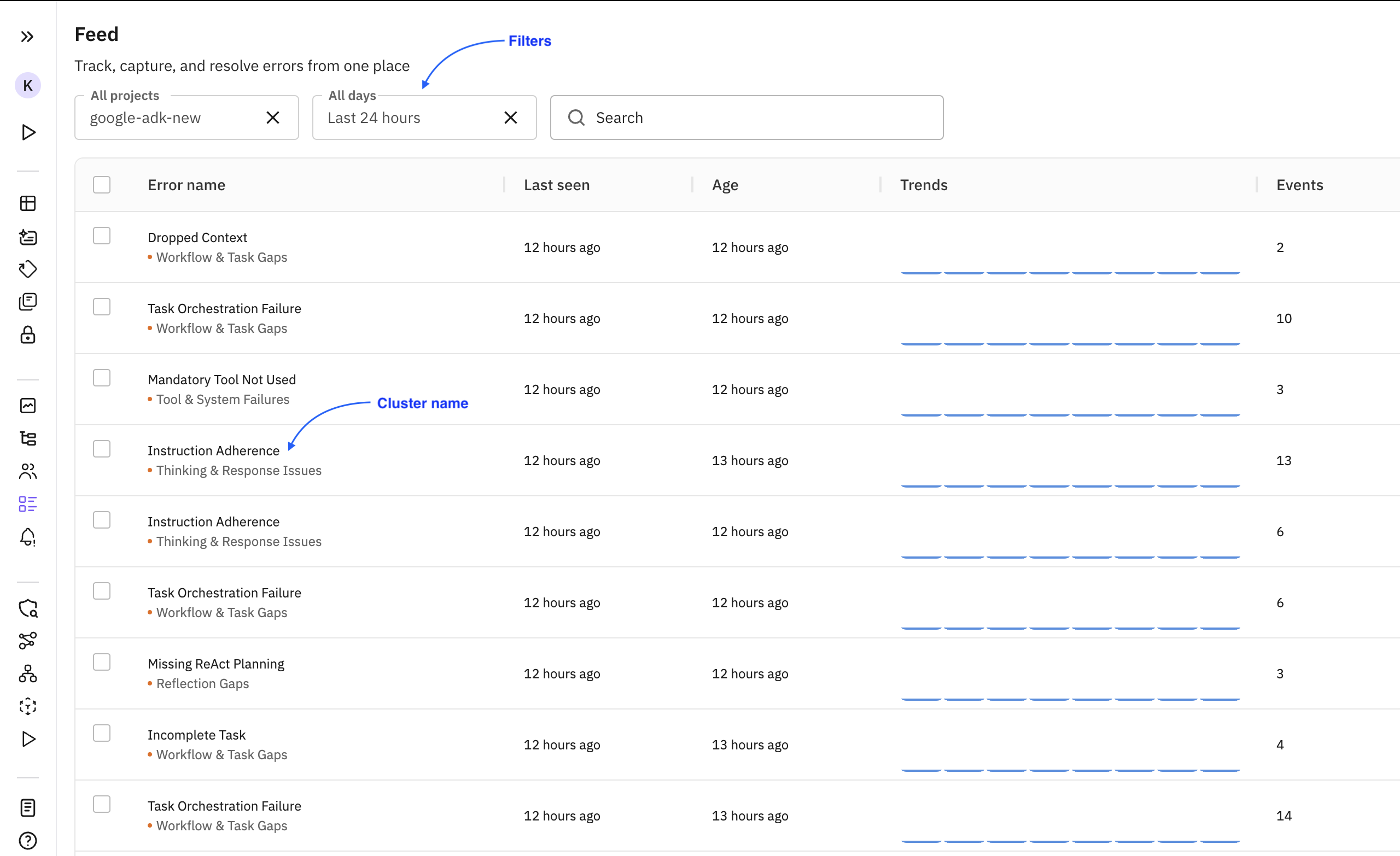 Following terms are helpful in getting a better understanding of the feature
#### Cluster
Mulitple traces can have the same error. All those traces are grouped under a common cluster. The `Error Name` shown in the image above is essentailly the name of the cluster. The listing page of the tab provides options to filter the clusters based on project and age of the lastest error.
#### Events
This term is used to indicate the number of occurances of the particular error
#### Trends
The number of times a particular error occured. The cycle of that is referred as trend (example: increasing, decreasing etc.)
Clicking on each of the cluster takes us to a details page which gives more information about the error and the associated trace(s) with it. By default, the latest trace associated with the error cluster will be shown. There are also other features that will be explained one by one.
Following terms are helpful in getting a better understanding of the feature
#### Cluster
Mulitple traces can have the same error. All those traces are grouped under a common cluster. The `Error Name` shown in the image above is essentailly the name of the cluster. The listing page of the tab provides options to filter the clusters based on project and age of the lastest error.
#### Events
This term is used to indicate the number of occurances of the particular error
#### Trends
The number of times a particular error occured. The cycle of that is referred as trend (example: increasing, decreasing etc.)
Clicking on each of the cluster takes us to a details page which gives more information about the error and the associated trace(s) with it. By default, the latest trace associated with the error cluster will be shown. There are also other features that will be explained one by one.
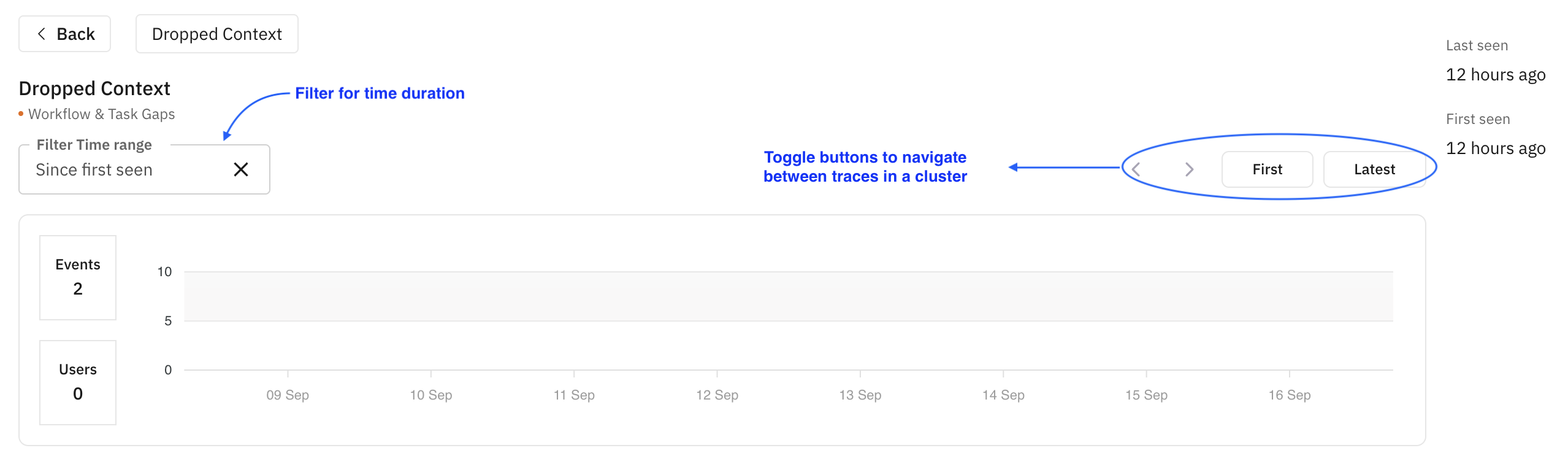
 **Toggling between traces & filtering:** The upper section of the page gives the options of toggling between traces, along with the information of when were the first and last occurences of the error. You can also able filter the data as per the time range of your liking. The graph displays the trends of the error
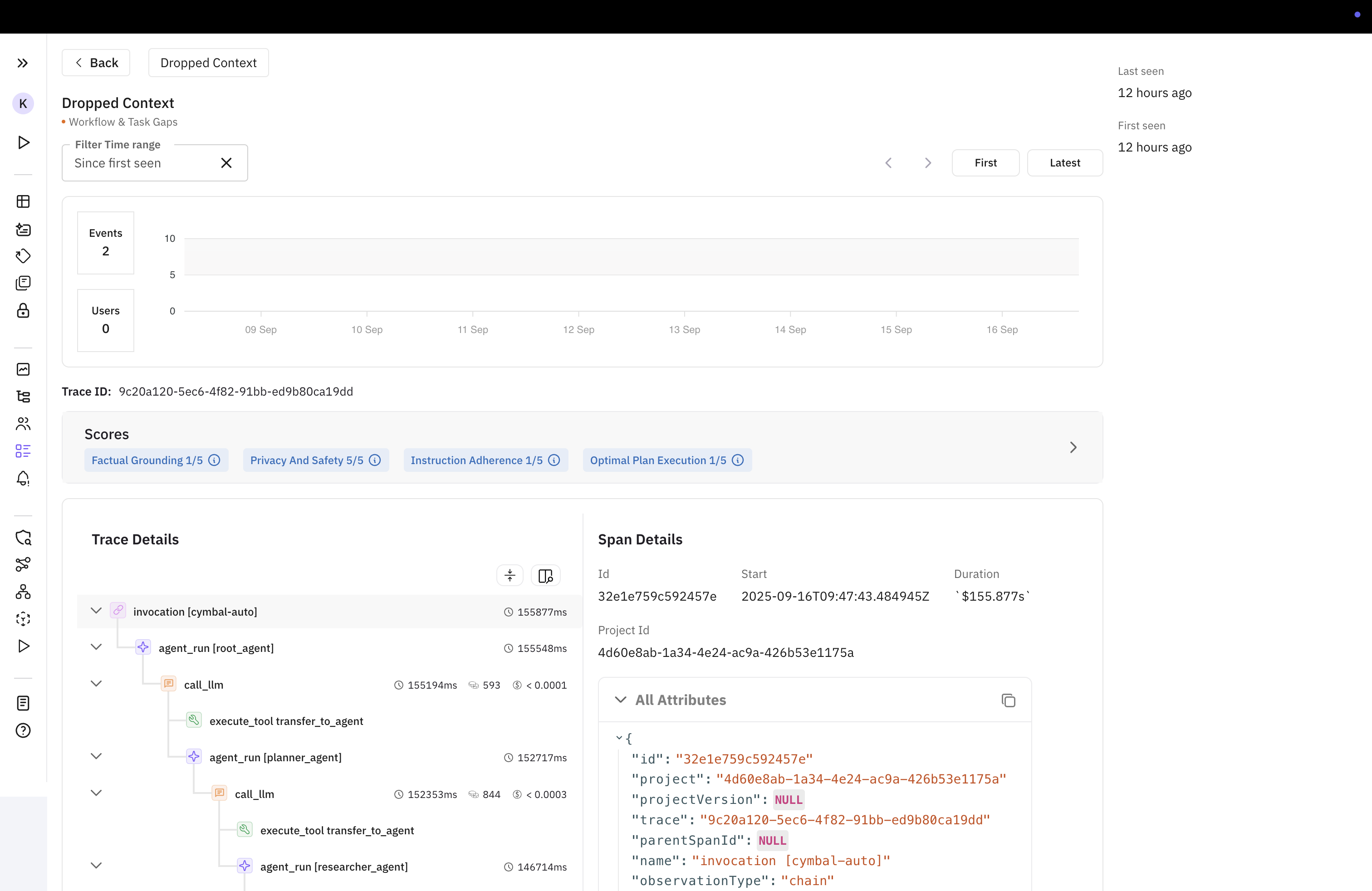
 **Insights and Trace tree details:** The next section shows the trace tree of the selected trace (latest affected trace by default). Along with it are the insights that were generated by the agent compass. On the right hand side, what we can see are the span attributes. Along with the metadata of the currently active span