> ## Documentation Index
> Fetch the complete documentation index at: https://futureagi.mintlify.site/llms.txt
> Use this file to discover all available pages before exploring further.
# Annotation Labels
> Understand the five annotation label types -- categorical, numeric, text, star rating, and thumbs up/down -- and when to use each.
## What it is
An annotation label is a reusable template that defines what feedback annotators provide. Labels are organization-scoped -- once created, any queue in your workspace can use them. This keeps annotation criteria consistent across teams and projects.
## Label types
FutureAGI supports five label types. Each type determines the UI control annotators see and the value format stored in the resulting score.
| Type | Description | Settings | Example Use Case | Value Format |
| ------------------ | -------------------------------------------------------------------------------------------------------------- | ----------------------------------------------------- | ----------------------------------------------- | --------------------------------------- |
| **Categorical** | Predefined list of options. Supports single-choice or multi-choice selection. Can be used for auto-annotation. | `options` (list of strings), `multi_choice` (boolean) | Sentiment analysis: Positive, Negative, Neutral | `string` (single) or `string[]` (multi) |
| **Numeric** | A number within a defined range. Annotators enter or slide to a value. | `min`, `max`, `step_size` | Relevance score from 1 to 10 | `number` |
| **Text** | Free-form text input for open-ended feedback. | `min_length`, `max_length`, `placeholder` | Grammar corrections or rewrite suggestions | `string` |
| **Star Rating** | Visual star selector for quick quality ratings. | `no_of_stars` (1-10) | Overall response quality | `number` (1 to N) |
| **Thumbs Up/Down** | Binary pass/fail toggle. The fastest annotation type. | None | Helpfulness check: was this answer useful? | `boolean` |
## Allow Notes
Every label type supports an optional **Allow Notes** toggle. When enabled, annotators can attach free-text notes alongside their primary annotation. This is useful for capturing context that a structured label cannot express -- for example, explaining *why* a response was rated as Negative.
Notes are stored in the `notes` field of the resulting score and are available in exports and the API.
## Scope and reuse
Labels belong to the organization, not to individual queues or projects. This means:
* A label created by one team member is available to all queues in the workspace.
* Updating a label's name or description applies everywhere it is referenced.
* Deleting a label does not remove existing scores that were created with it -- historical data is preserved.
## Which type should I use?
Use the decision guide below to pick the right label type for your scenario.
| Scenario | Recommended Type | Why |
| ------------------------------------------------------------------------ | ------------------------------------ | ------------------------------------------------------------------------- |
| Classify responses into fixed categories (e.g. topic, intent, sentiment) | **Categorical** | Predefined options ensure consistency and enable aggregation. |
| Rate quality on a fine-grained scale | **Numeric** | Continuous range captures nuance that categories miss. |
| Collect corrections, rewrites, or explanations | **Text** | Free-form input gives annotators maximum flexibility. |
| Quick quality gut-check (1-5 stars) | **Star Rating** | Visual stars are fast and intuitive for subjective quality. |
| Binary accept/reject decisions | **Thumbs Up/Down** | Fastest annotation type -- one click per item. |
| Multiple dimensions per item (e.g. relevance AND toxicity) | Combine multiple labels in one queue | Attach several labels to a single queue for multi-dimensional annotation. |
## Creating a label
Navigate to **Annotations** in the left sidebar and select the **Labels** tab. Click **Create Label**.
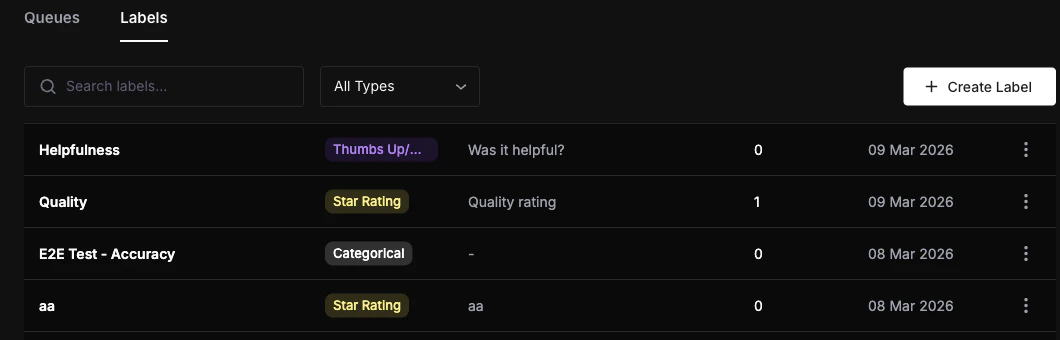 Fill in the label name, select a type, and configure the type-specific settings described in the table above. Toggle **Allow Notes** if you want annotators to provide written context.
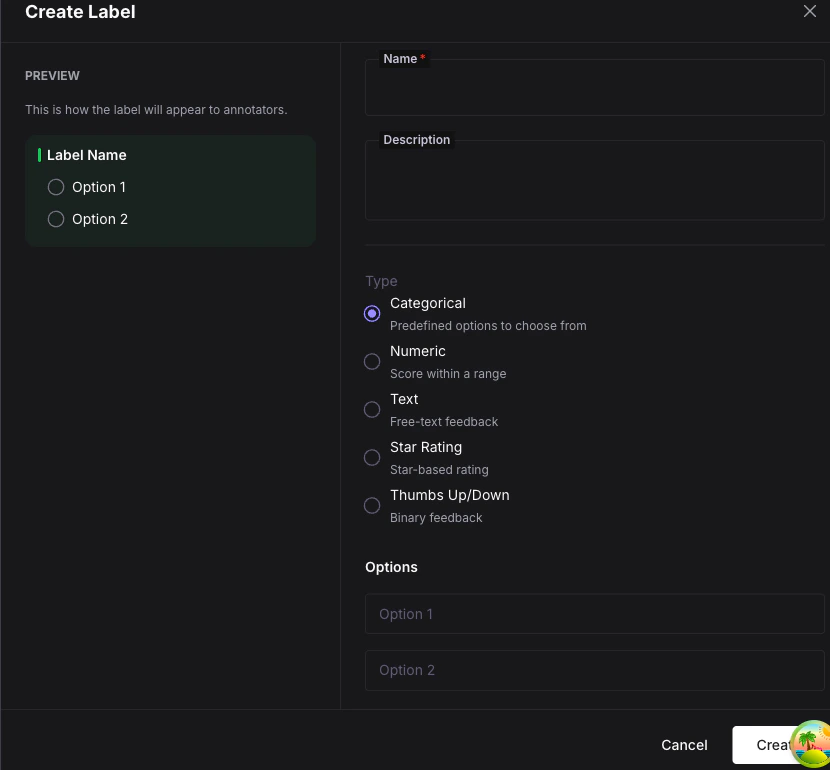 Click **Create**. The label is now available for any queue in your organization.
## UI appearance by type
Each label type renders a different control in the annotation workspace:
| Type | Annotator UI |
| -------------------- | ----------------------------------- |
| Categorical (single) | Radio buttons for each option |
| Categorical (multi) | Checkboxes for each option |
| Numeric | Number input with stepper or slider |
| Text | Multi-line text area |
| Star Rating | Clickable star icons |
| Thumbs Up/Down | Thumb up and thumb down buttons |
## What you can do next
Attach labels to a queue and configure how annotation work is distributed.
See how label values are stored as scores and queried via the API.
Click **Create**. The label is now available for any queue in your organization.
## UI appearance by type
Each label type renders a different control in the annotation workspace:
| Type | Annotator UI |
| -------------------- | ----------------------------------- |
| Categorical (single) | Radio buttons for each option |
| Categorical (multi) | Checkboxes for each option |
| Numeric | Number input with stepper or slider |
| Text | Multi-line text area |
| Star Rating | Clickable star icons |
| Thumbs Up/Down | Thumb up and thumb down buttons |
## What you can do next
Attach labels to a queue and configure how annotation work is distributed.
See how label values are stored as scores and queried via the API.