> ## Documentation Index
> Fetch the complete documentation index at: https://futureagi.mintlify.site/llms.txt
> Use this file to discover all available pages before exploring further.
# Add Items to Queues
> Learn how to add traces, spans, sessions, dataset rows, prototypes, and simulation calls to annotation queues.
## What it is
Items are the bridge between your data and your annotation workflow. Each item links a source -- a trace, span, session, dataset row, prototype run, or simulation call -- to a queue. When you add items to a queue, annotators can review the source content and apply the queue's labels.
## Supported source types
| Source Type | Where to find | Description |
| ---------------- | -------------------------------------- | ---------------------------------------------------------------------- |
| Trace | Observe > Traces | Full LLM trace with input, output, metadata, latency, tokens, and cost |
| Observation Span | Observe > Trace detail > specific span | An individual span within a trace |
| Session | Observe > Sessions | A conversation session (group of related traces) |
| Dataset Row | Datasets > select dataset | An individual row in a dataset |
| Prototype Run | Prototype > execution history | A prototype experiment run |
| Simulation Call | Simulation > call logs | A simulated voice or text call execution |
## How to add items from Observe
Go to your **Observe** project and open the **Traces** view.
Use the checkboxes to select one or more traces you want to annotate.
Click the **Add to Queue** button in the toolbar. A dialog opens where you can search for and select the target queue.
Select the queue and click **Add**. The selected traces appear as items in the queue's **Items** tab with a **Pending** status.
## How to add from other sources
The flow is the same across all source types:
* **Datasets** -- Navigate to a dataset, select rows using checkboxes, and click **Add to Queue**.
* **Sessions** -- Open Observe > Sessions, select sessions, and click **Add to Queue**.
* **Prototyping** -- Open a prototype's execution history, select runs, and click **Add to Queue**.
* **Simulation** -- Open simulation call logs, select calls, and click **Add to Queue**.
## Managing items in a queue
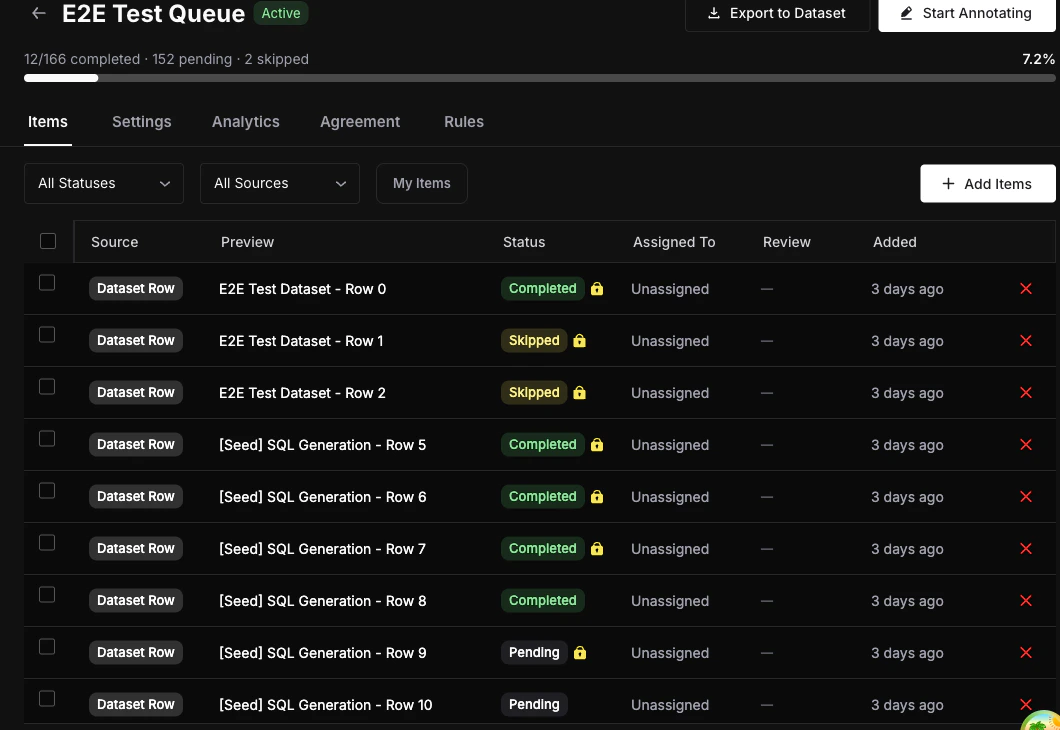
Open a queue's detail page and go to the **Items** tab to see all items and their statuses.
 ### Filtering items
* **By status** -- Filter by Pending, In Progress, Completed, or Skipped.
* **By source type** -- Show only items from a specific source (e.g., traces only).
* **My Items** -- Toggle to see only items assigned to you.
### Removing items
* Select one or more items using checkboxes and click **Remove Selected**.
* Or click the `x` button on an individual row to remove a single item.
### Bulk operations
Use the select-all checkbox to select all visible items, then apply bulk actions like remove.
Duplicate items are silently skipped. If a source is already in the queue, adding it again has no effect. The response shows how many items were added versus how many were duplicates.
For large-scale annotation campaigns, use the SDK to programmatically add items to queues. See the [Python SDK](/product/annotations/sdk/python) or [JavaScript SDK](/product/annotations/sdk/javascript) guide.
## Next steps
Start annotating items in the annotation workspace.
Understand how queue items flow through statuses and assignment.
Add items programmatically via the REST API.
### Filtering items
* **By status** -- Filter by Pending, In Progress, Completed, or Skipped.
* **By source type** -- Show only items from a specific source (e.g., traces only).
* **My Items** -- Toggle to see only items assigned to you.
### Removing items
* Select one or more items using checkboxes and click **Remove Selected**.
* Or click the `x` button on an individual row to remove a single item.
### Bulk operations
Use the select-all checkbox to select all visible items, then apply bulk actions like remove.
Duplicate items are silently skipped. If a source is already in the queue, adding it again has no effect. The response shows how many items were added versus how many were duplicates.
For large-scale annotation campaigns, use the SDK to programmatically add items to queues. See the [Python SDK](/product/annotations/sdk/python) or [JavaScript SDK](/product/annotations/sdk/javascript) guide.
## Next steps
Start annotating items in the annotation workspace.
Understand how queue items flow through statuses and assignment.
Add items programmatically via the REST API.