> ## Documentation Index
> Fetch the complete documentation index at: https://futureagi.mintlify.site/llms.txt
> Use this file to discover all available pages before exploring further.
# Annotate Items
> Complete guide to the annotation workspace -- label inputs, keyboard shortcuts, navigation, instructions, and completion workflow.
## What it is
The annotation workspace is where annotators provide feedback on queue items. It presents the source content alongside the queue's labels in a focused, distraction-free view designed for fast, consistent annotation.
## How to start annotating
Navigate to a queue and click the **Start Annotating** button. You can also go to the queue's **Items** tab and click on any individual item.
The workspace opens in a dedicated view.
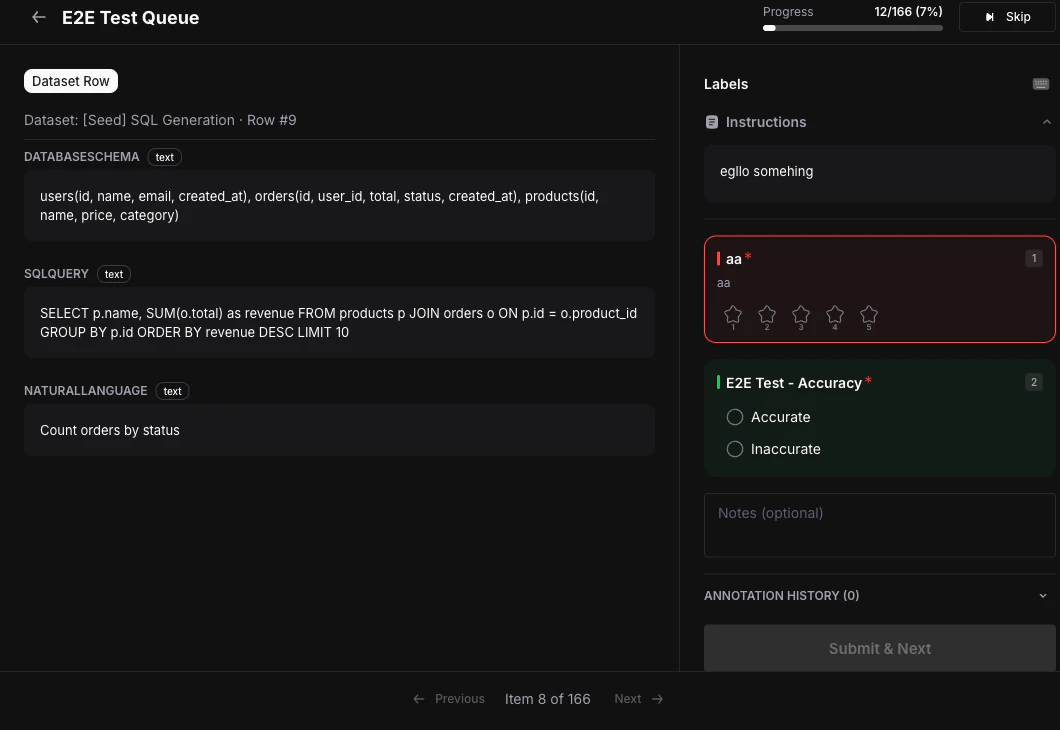 The **left panel** (\~60% of the screen) displays the source content. What you see depends on the source type:
| Source Type | What is displayed |
| --------------- | --------------------------------------------------------------------------------------- |
| Trace | Full trace tree with expandable spans -- input, output, metadata, latency, tokens, cost |
| Dataset Row | All fields and values from the dataset row |
| Session | Conversation history with expandable individual traces |
| Prototype Run | Prompt, response, and model information |
| Simulation Call | Transcript, analytics, and audio player (for voice calls) |
The **right panel** (\~40% of the screen) shows each label as a section with a colored header. Fill in values based on the label type:
* **Categorical** -- Click a radio button (single-choice) or checkbox (multi-choice). Use number keys `1`--`9` for quick selection.
* **Numeric** -- Drag the slider or type directly in the input field. Values are enforced within the configured min/max bounds.
* **Star** -- Click a star to set the rating. Use number keys `1`--`N` where N is the number of stars.
* **Thumbs Up/Down** -- Click the **Yes** or **No** button. Use key `1` for thumbs up or `2` for thumbs down.
* **Text** -- Type in the text area. A character count is shown. Input is saved with a 300ms debounce.
If the queue's labels have **Allow Notes** enabled, an optional free-text field appears at the bottom of the labels panel. Use it to add context or comments about your annotation.
Click **Submit & Next** or press `Ctrl+Enter` (`Cmd+Enter` on Mac) to save your annotations and advance to the next item.
* An item is marked as **Completed** when all required labels have been scored.
* If the queue requires multiple annotators, the item stays **In Progress** until the required number of annotators have submitted.
## Keyboard shortcuts
Use keyboard shortcuts for significantly faster annotation speed.
| Shortcut | Action |
| -------------------------- | ------------------------------------------------ |
| `Tab` / `Shift+Tab` | Navigate between labels |
| `1`--`9` | Select a categorical option or set a star rating |
| `Ctrl+Enter` / `Cmd+Enter` | Submit and move to next item |
| `S` | Skip current item |
| `←` / `→` | Previous / next item |
| `?` | Toggle keyboard shortcuts help |
Keyboard shortcuts can increase annotation speed by 3--5x. Press `?` in the workspace at any time to see all available shortcuts.
## Instructions panel
If the queue creator wrote annotation instructions, they appear in a collapsible section above the labels. Instructions are rendered as markdown and typically include criteria, examples, and edge-case guidance. Review them before starting your first annotation.
## Skipping items
Click the **Skip** button in the header or press `S` to skip the current item and move to the next one. Skipped items can be revisited later -- they are not marked as completed.
## Navigation
* Use the **Previous** and **Next** buttons in the footer to move between items.
* A position indicator shows your current item (e.g., "5 of 50").
* The workspace maintains a history of up to 50 visited items for easy back-navigation.
* A progress bar in the header shows overall completion (X of Y completed).
## Completion
When all items in the queue have been annotated, a success screen appears with completion statistics.
If an item's source has been deleted, the workspace displays a "Source item has been deleted" message. If another annotator has reserved the item, a lock icon is shown and you will be routed to the next available item.
## Next steps
Annotate directly from trace detail, session grid, or dataset views without opening a queue.
Export annotated data as training or evaluation datasets.
View completion rates, annotator activity, and label distributions.
The **left panel** (\~60% of the screen) displays the source content. What you see depends on the source type:
| Source Type | What is displayed |
| --------------- | --------------------------------------------------------------------------------------- |
| Trace | Full trace tree with expandable spans -- input, output, metadata, latency, tokens, cost |
| Dataset Row | All fields and values from the dataset row |
| Session | Conversation history with expandable individual traces |
| Prototype Run | Prompt, response, and model information |
| Simulation Call | Transcript, analytics, and audio player (for voice calls) |
The **right panel** (\~40% of the screen) shows each label as a section with a colored header. Fill in values based on the label type:
* **Categorical** -- Click a radio button (single-choice) or checkbox (multi-choice). Use number keys `1`--`9` for quick selection.
* **Numeric** -- Drag the slider or type directly in the input field. Values are enforced within the configured min/max bounds.
* **Star** -- Click a star to set the rating. Use number keys `1`--`N` where N is the number of stars.
* **Thumbs Up/Down** -- Click the **Yes** or **No** button. Use key `1` for thumbs up or `2` for thumbs down.
* **Text** -- Type in the text area. A character count is shown. Input is saved with a 300ms debounce.
If the queue's labels have **Allow Notes** enabled, an optional free-text field appears at the bottom of the labels panel. Use it to add context or comments about your annotation.
Click **Submit & Next** or press `Ctrl+Enter` (`Cmd+Enter` on Mac) to save your annotations and advance to the next item.
* An item is marked as **Completed** when all required labels have been scored.
* If the queue requires multiple annotators, the item stays **In Progress** until the required number of annotators have submitted.
## Keyboard shortcuts
Use keyboard shortcuts for significantly faster annotation speed.
| Shortcut | Action |
| -------------------------- | ------------------------------------------------ |
| `Tab` / `Shift+Tab` | Navigate between labels |
| `1`--`9` | Select a categorical option or set a star rating |
| `Ctrl+Enter` / `Cmd+Enter` | Submit and move to next item |
| `S` | Skip current item |
| `←` / `→` | Previous / next item |
| `?` | Toggle keyboard shortcuts help |
Keyboard shortcuts can increase annotation speed by 3--5x. Press `?` in the workspace at any time to see all available shortcuts.
## Instructions panel
If the queue creator wrote annotation instructions, they appear in a collapsible section above the labels. Instructions are rendered as markdown and typically include criteria, examples, and edge-case guidance. Review them before starting your first annotation.
## Skipping items
Click the **Skip** button in the header or press `S` to skip the current item and move to the next one. Skipped items can be revisited later -- they are not marked as completed.
## Navigation
* Use the **Previous** and **Next** buttons in the footer to move between items.
* A position indicator shows your current item (e.g., "5 of 50").
* The workspace maintains a history of up to 50 visited items for easy back-navigation.
* A progress bar in the header shows overall completion (X of Y completed).
## Completion
When all items in the queue have been annotated, a success screen appears with completion statistics.
If an item's source has been deleted, the workspace displays a "Source item has been deleted" message. If another annotator has reserved the item, a lock icon is shown and you will be routed to the next available item.
## Next steps
Annotate directly from trace detail, session grid, or dataset views without opening a queue.
Export annotated data as training or evaluation datasets.
View completion rates, annotator activity, and label distributions.