> ## Documentation Index
> Fetch the complete documentation index at: https://futureagi.mintlify.site/llms.txt
> Use this file to discover all available pages before exploring further.
# Create New Dataset
> Learn to create datasets to do experimentations on them
Import your data using Future AGI SDK.
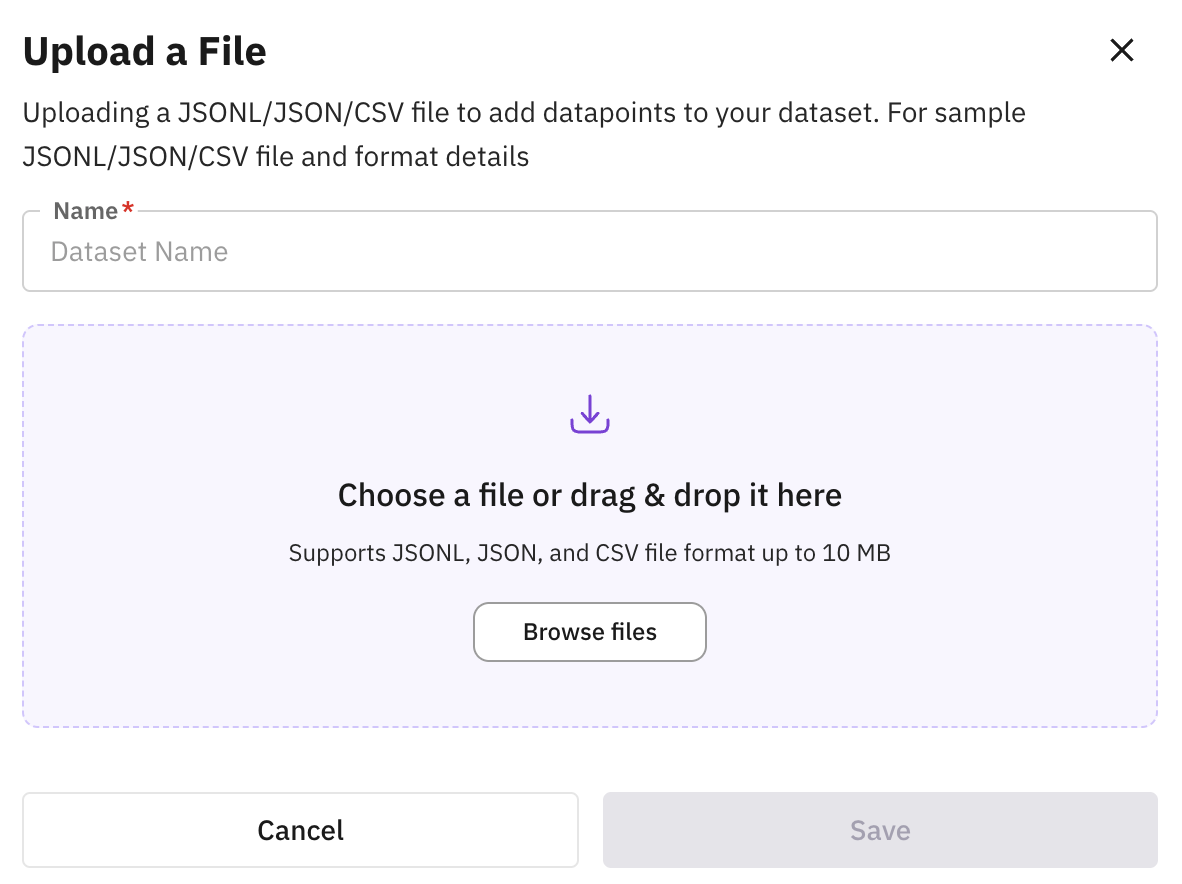
Upload CSV, JSON or JSONL files.
Synthetically generate data.
Manually create dataset from scratch.
Import datasets directly from Hugging Face.
Create a subset from an existing dataset.
***
## Using SDK
Use SDK to import your data to Future AGI.
Assign a name to your dataset and click on "Next" to proceed.
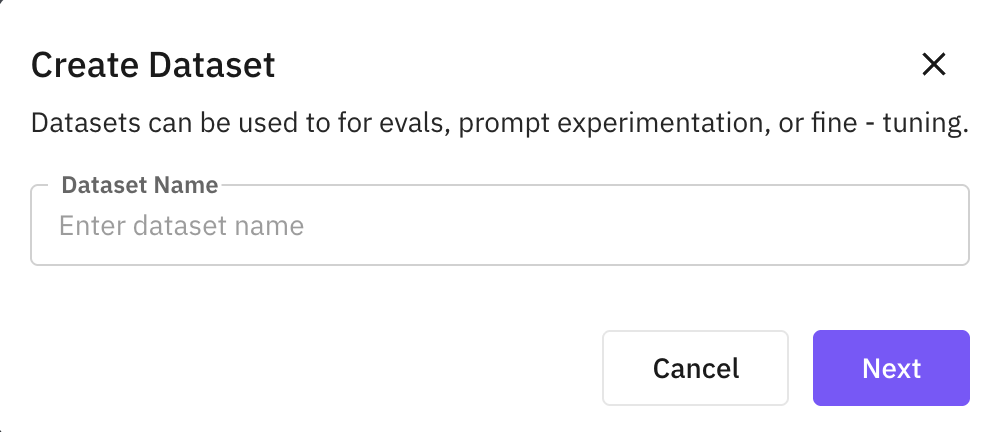 You will be greeted with a screen containing code snippet to add rows to your dataset.
```python Python theme={null}
# pip install futureagi
import os
from fi.datasets import Dataset
from fi.datasets.types import (
Cell,
Column,
DatasetConfig,
DataTypeChoices,
ModelTypes,
Row,
SourceChoices,
)
# Set environment variables
os.environ["FI_API_KEY"] = ""
os.environ["FI_SECRET_KEY"] = ""
# Get existing dataset
config = DatasetConfig(name="my-dataset", model_type= ModelTypes.GENERATIVE_LLM)
dataset = Dataset(dataset_config=config)
dataset = Dataset.get_dataset_config("my-dataset")
# Define columns
columns = [
Column(
name="user_query",
data_type=DataTypeChoices.TEXT,
source=SourceChoices.OTHERS
),
Column(
name="response_quality",
data_type=DataTypeChoices.INTEGER,
source=SourceChoices.OTHERS
),
Column(
name="is_helpful",
data_type=DataTypeChoices.BOOLEAN,
source=SourceChoices.OTHERS
)
]
# Define rows
rows = [
Row(
order=1,
cells=[
Cell(column_name="user_query", value="What is machine learning?"),
Cell(column_name="response_quality", value=8),
Cell(column_name="is_helpful", value=True)
]
),
Row(
order=2,
cells=[
Cell(column_name="user_query", value="Explain quantum computing"),
Cell(column_name="response_quality", value=9),
Cell(column_name="is_helpful", value=True)
]
)
]
try:
# Add columns and rows to dataset
dataset = dataset.add_columns(columns=columns)
dataset = dataset.add_rows(rows=rows)
print("✓ Data added successfully")
except Exception as e:
print(f"Failed to add data: {e}")
```
```typescript Typescript theme={null}
import { Dataset, DataTypeChoices, createRow, createCell } from "@future-agi/sdk";
process.env["FI_API_KEY"] = "";
process.env["FI_SECRET_KEY"] = "";
async function main() {
try {
const dsName = "my-dataset";
// 1) Open the dataset (fetch if it exists, create if not)
const dataset = await Dataset.open(dsName);
// 2) Define columns
const columns = [
{ name: "user_query", dataType: DataTypeChoices.TEXT },
{ name: "response_quality", dataType: DataTypeChoices.INTEGER },
{ name: "is_helpful", dataType: DataTypeChoices.BOOLEAN },
];
// 3) Define rows
const rows = [
createRow({
cells: [
createCell({ columnName: "user_query", value: "What is machine learning?" }),
createCell({ columnName: "response_quality", value: 8 }),
createCell({ columnName: "is_helpful", value: true }),
],
}),
createRow({
cells: [
createCell({ columnName: "user_query", value: "Explain quantum computing" }),
createCell({ columnName: "response_quality", value: 9 }),
createCell({ columnName: "is_helpful", value: true }),
],
}),
];
// 4) Add columns and rows
await dataset.addColumns(columns);
await dataset.addRows(rows);
console.log("✓ Data added successfully");
} catch (err) {
console.error("Failed to add data:", err);
}
}
main();
```
```bash Curl theme={null}
curl --request POST --url https://api.futureagi.com/model-hub/develops//add_columns/ --header 'X-Api-Key: ' --header 'X-Secret-Key: ' --header 'content-type: application/json' --data '{
"new_columns_data": [
{
"name": "user_query",
"data_type": "text"
},
{
"name": "response_quality",
"data_type": "integer"
},
{
"name": "is_helpful",
"data_type": "boolean"
}
]
}'
```
Click [here](https://app.futureagi.com/dashboard/keys) to access API Key and Secret Key.
***
## Upload File
You will be greeted with a screen containing code snippet to add rows to your dataset.
```python Python theme={null}
# pip install futureagi
import os
from fi.datasets import Dataset
from fi.datasets.types import (
Cell,
Column,
DatasetConfig,
DataTypeChoices,
ModelTypes,
Row,
SourceChoices,
)
# Set environment variables
os.environ["FI_API_KEY"] = ""
os.environ["FI_SECRET_KEY"] = ""
# Get existing dataset
config = DatasetConfig(name="my-dataset", model_type= ModelTypes.GENERATIVE_LLM)
dataset = Dataset(dataset_config=config)
dataset = Dataset.get_dataset_config("my-dataset")
# Define columns
columns = [
Column(
name="user_query",
data_type=DataTypeChoices.TEXT,
source=SourceChoices.OTHERS
),
Column(
name="response_quality",
data_type=DataTypeChoices.INTEGER,
source=SourceChoices.OTHERS
),
Column(
name="is_helpful",
data_type=DataTypeChoices.BOOLEAN,
source=SourceChoices.OTHERS
)
]
# Define rows
rows = [
Row(
order=1,
cells=[
Cell(column_name="user_query", value="What is machine learning?"),
Cell(column_name="response_quality", value=8),
Cell(column_name="is_helpful", value=True)
]
),
Row(
order=2,
cells=[
Cell(column_name="user_query", value="Explain quantum computing"),
Cell(column_name="response_quality", value=9),
Cell(column_name="is_helpful", value=True)
]
)
]
try:
# Add columns and rows to dataset
dataset = dataset.add_columns(columns=columns)
dataset = dataset.add_rows(rows=rows)
print("✓ Data added successfully")
except Exception as e:
print(f"Failed to add data: {e}")
```
```typescript Typescript theme={null}
import { Dataset, DataTypeChoices, createRow, createCell } from "@future-agi/sdk";
process.env["FI_API_KEY"] = "";
process.env["FI_SECRET_KEY"] = "";
async function main() {
try {
const dsName = "my-dataset";
// 1) Open the dataset (fetch if it exists, create if not)
const dataset = await Dataset.open(dsName);
// 2) Define columns
const columns = [
{ name: "user_query", dataType: DataTypeChoices.TEXT },
{ name: "response_quality", dataType: DataTypeChoices.INTEGER },
{ name: "is_helpful", dataType: DataTypeChoices.BOOLEAN },
];
// 3) Define rows
const rows = [
createRow({
cells: [
createCell({ columnName: "user_query", value: "What is machine learning?" }),
createCell({ columnName: "response_quality", value: 8 }),
createCell({ columnName: "is_helpful", value: true }),
],
}),
createRow({
cells: [
createCell({ columnName: "user_query", value: "Explain quantum computing" }),
createCell({ columnName: "response_quality", value: 9 }),
createCell({ columnName: "is_helpful", value: true }),
],
}),
];
// 4) Add columns and rows
await dataset.addColumns(columns);
await dataset.addRows(rows);
console.log("✓ Data added successfully");
} catch (err) {
console.error("Failed to add data:", err);
}
}
main();
```
```bash Curl theme={null}
curl --request POST --url https://api.futureagi.com/model-hub/develops//add_columns/ --header 'X-Api-Key: ' --header 'X-Secret-Key: ' --header 'content-type: application/json' --data '{
"new_columns_data": [
{
"name": "user_query",
"data_type": "text"
},
{
"name": "response_quality",
"data_type": "integer"
},
{
"name": "is_helpful",
"data_type": "boolean"
}
]
}'
```
Click [here](https://app.futureagi.com/dashboard/keys) to access API Key and Secret Key.
***
## Upload File
 ***
## Using Synthetic Data Generation
Synthetically generate data and perform experimentations on it.
Provide basic details about the dataset you want to generate.
***
## Using Synthetic Data Generation
Synthetically generate data and perform experimentations on it.
Provide basic details about the dataset you want to generate.
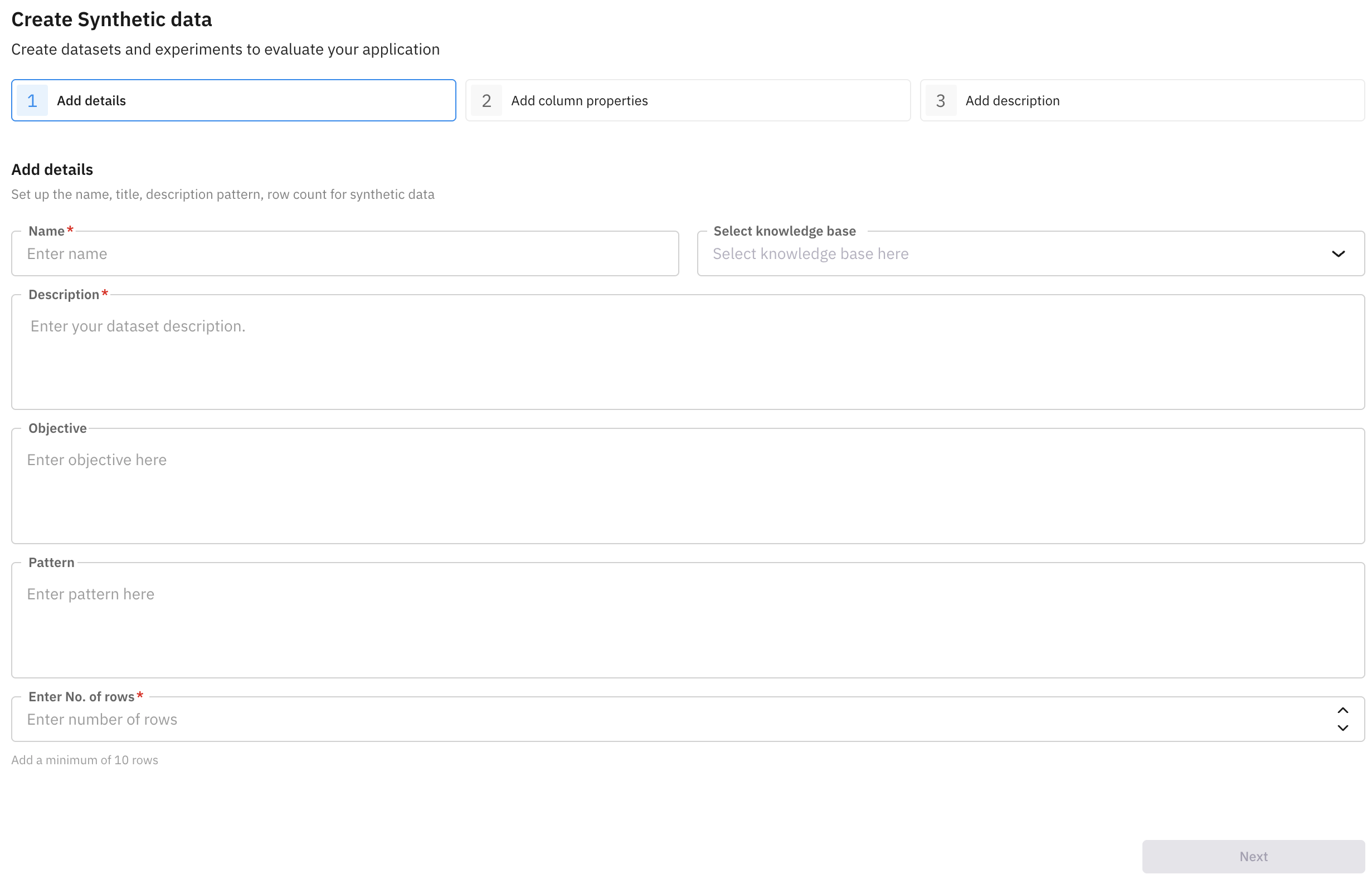 | Property | Description |
| ------------------------- | -------------------------------------------------------------------------------------------------------------------------------------------------------------------------------------------------------------------------------------------------------- |
| Name | Name of the dataset |
| Knowledge Base (optional) | Select which knowledge base you want to use. |
| Description | Describe the dataset you want to generate |
| Objective (optional) | Use case of the dataset |
| Pattern (optional) | Style, tone or behavioral traits of the generated dataset |
| No. of Rows | Row count of the generated dataset (min 10 rows) |
Define column types and properties
| Property | Description |
| ------------------------- | -------------------------------------------------------------------------------------------------------------------------------------------------------------------------------------------------------------------------------------------------------- |
| Name | Name of the dataset |
| Knowledge Base (optional) | Select which knowledge base you want to use. |
| Description | Describe the dataset you want to generate |
| Objective (optional) | Use case of the dataset |
| Pattern (optional) | Style, tone or behavioral traits of the generated dataset |
| No. of Rows | Row count of the generated dataset (min 10 rows) |
Define column types and properties
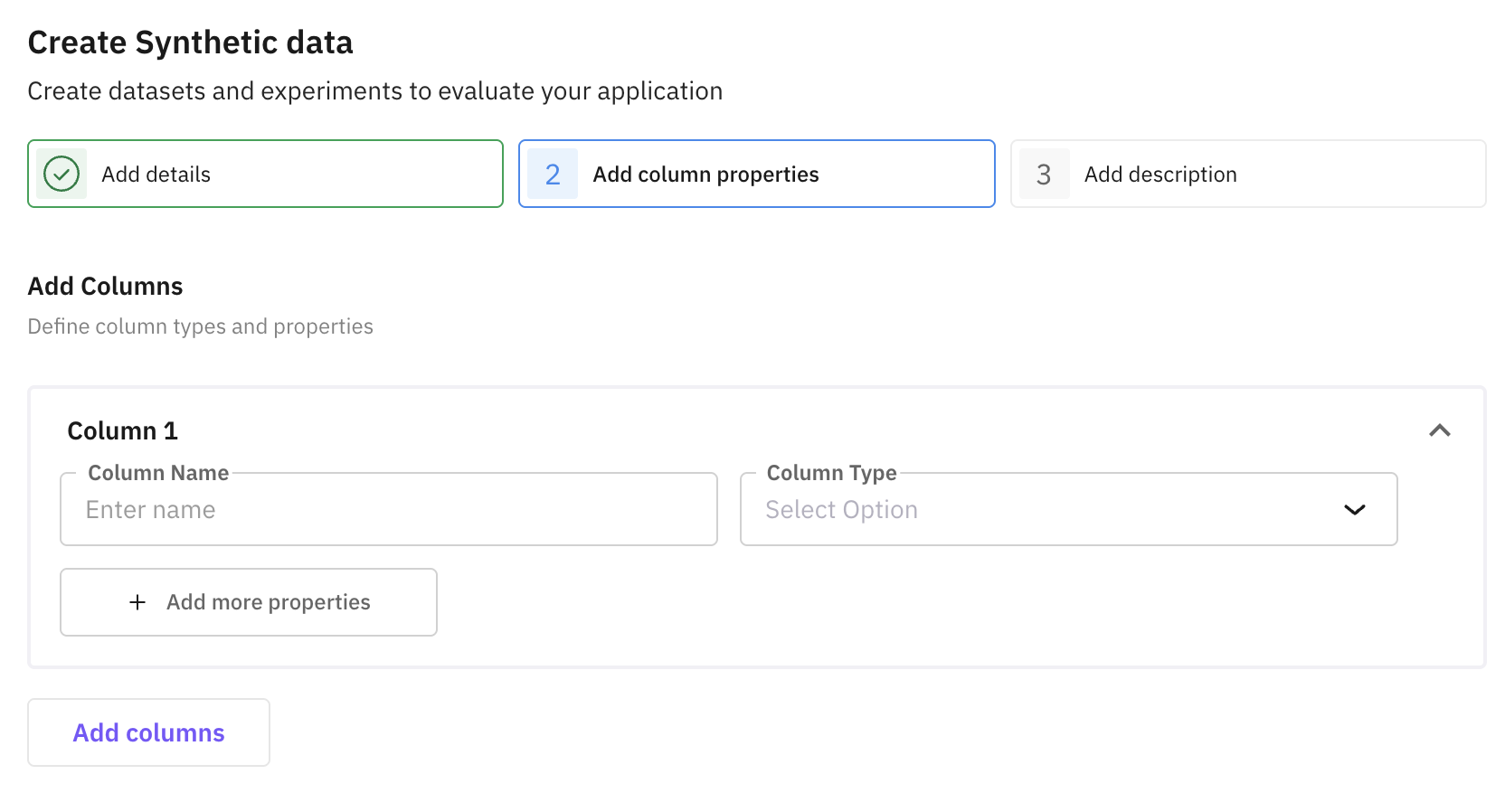 | Property | Description |
| ----------- | ------------------------------------------------------------------------------------------------------ |
| Column Name | Name of the column |
| Column Type | Choose the type of the column (available types: text, boolean, integer, float, json, array, datetime) |
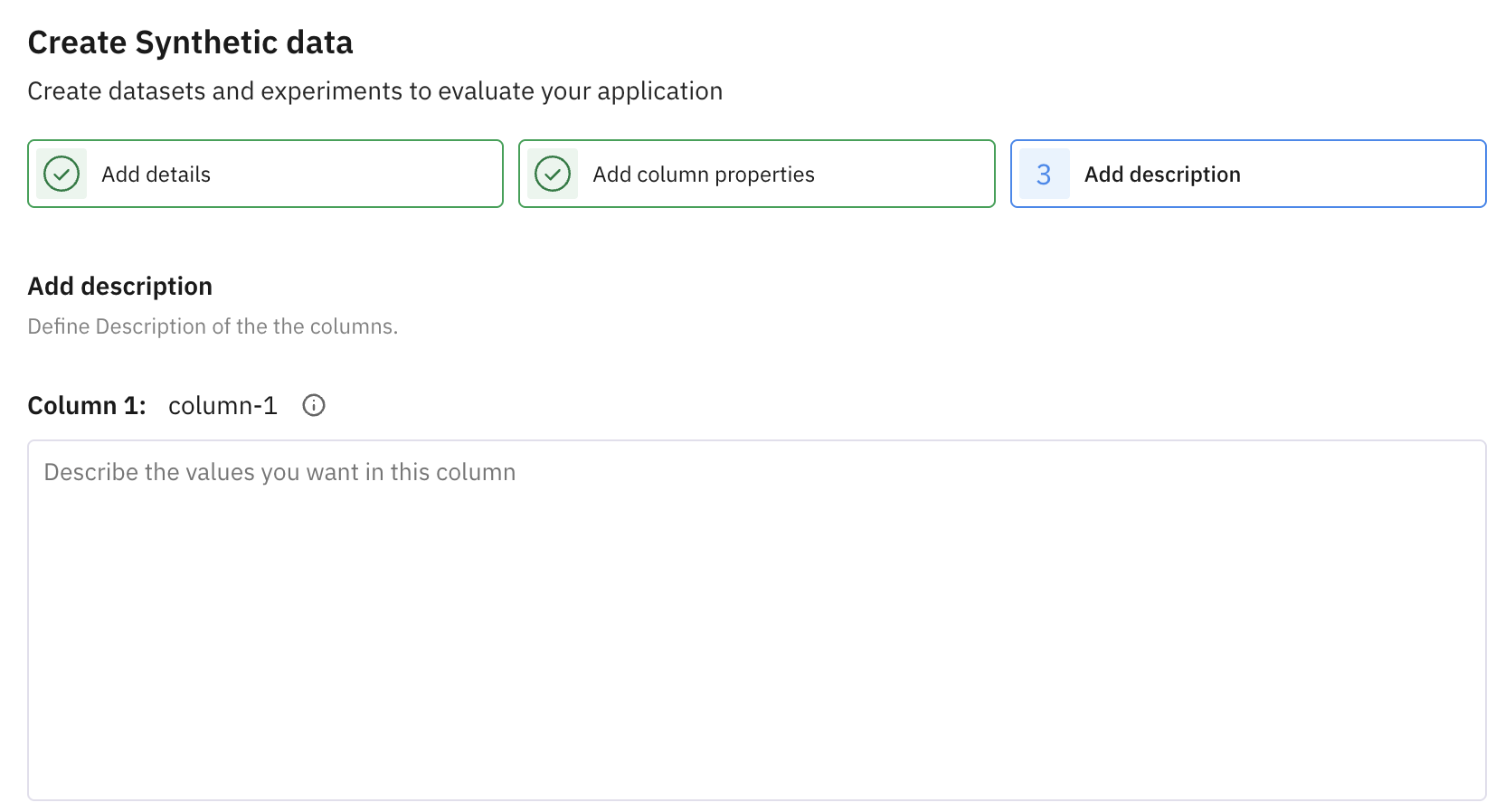
Now add description for each column. Describe in detail what values you want in this column.
| Property | Description |
| ----------- | ------------------------------------------------------------------------------------------------------ |
| Column Name | Name of the column |
| Column Type | Choose the type of the column (available types: text, boolean, integer, float, json, array, datetime) |
Now add description for each column. Describe in detail what values you want in this column.
 Click on "Create Dataset" button to generate the dataset. Your synthetic dataset will be generated in a few seconds and will be available in your dataset [dashboard](https://app.futureagi.com/dashboard/develop).
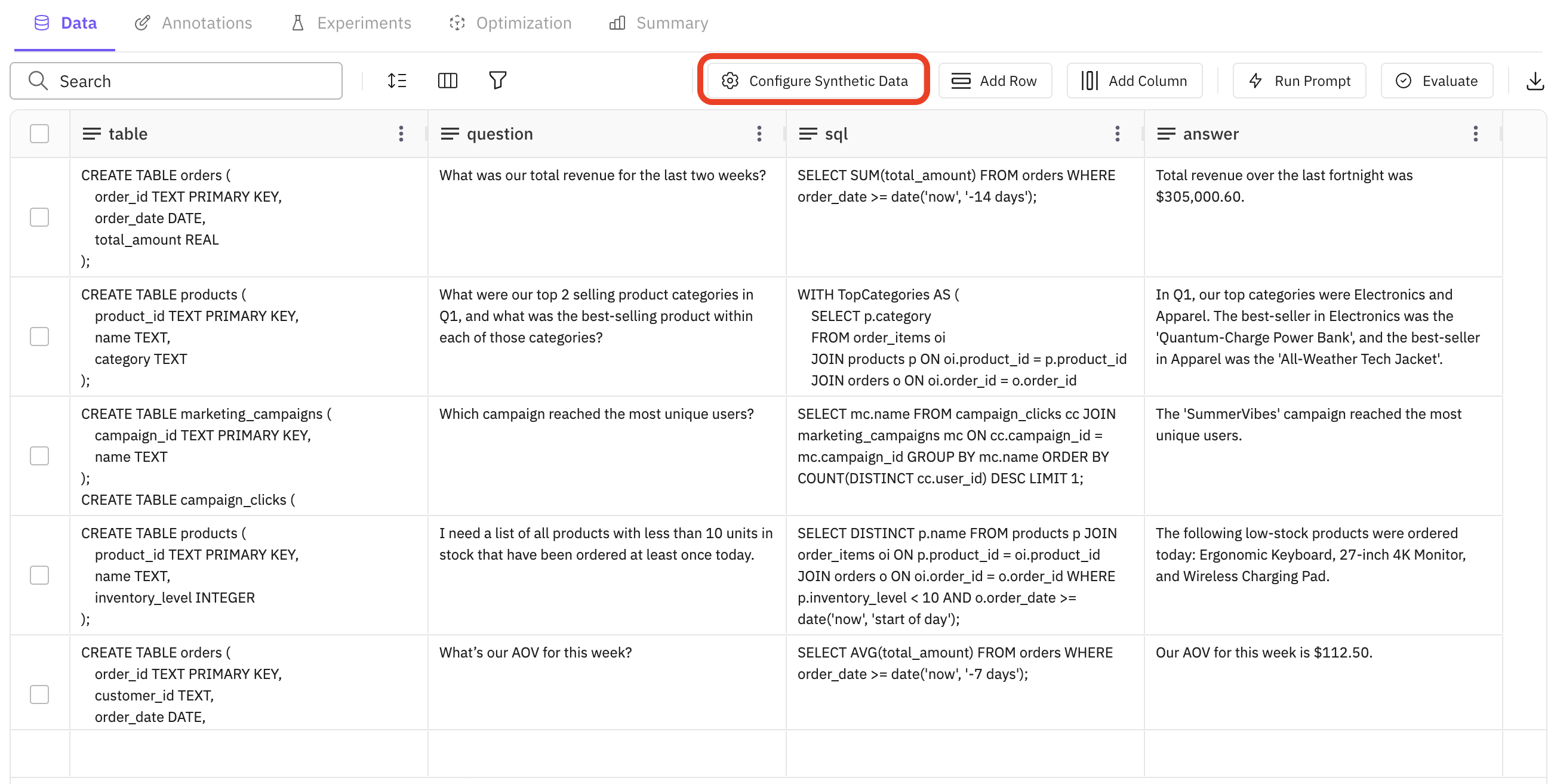
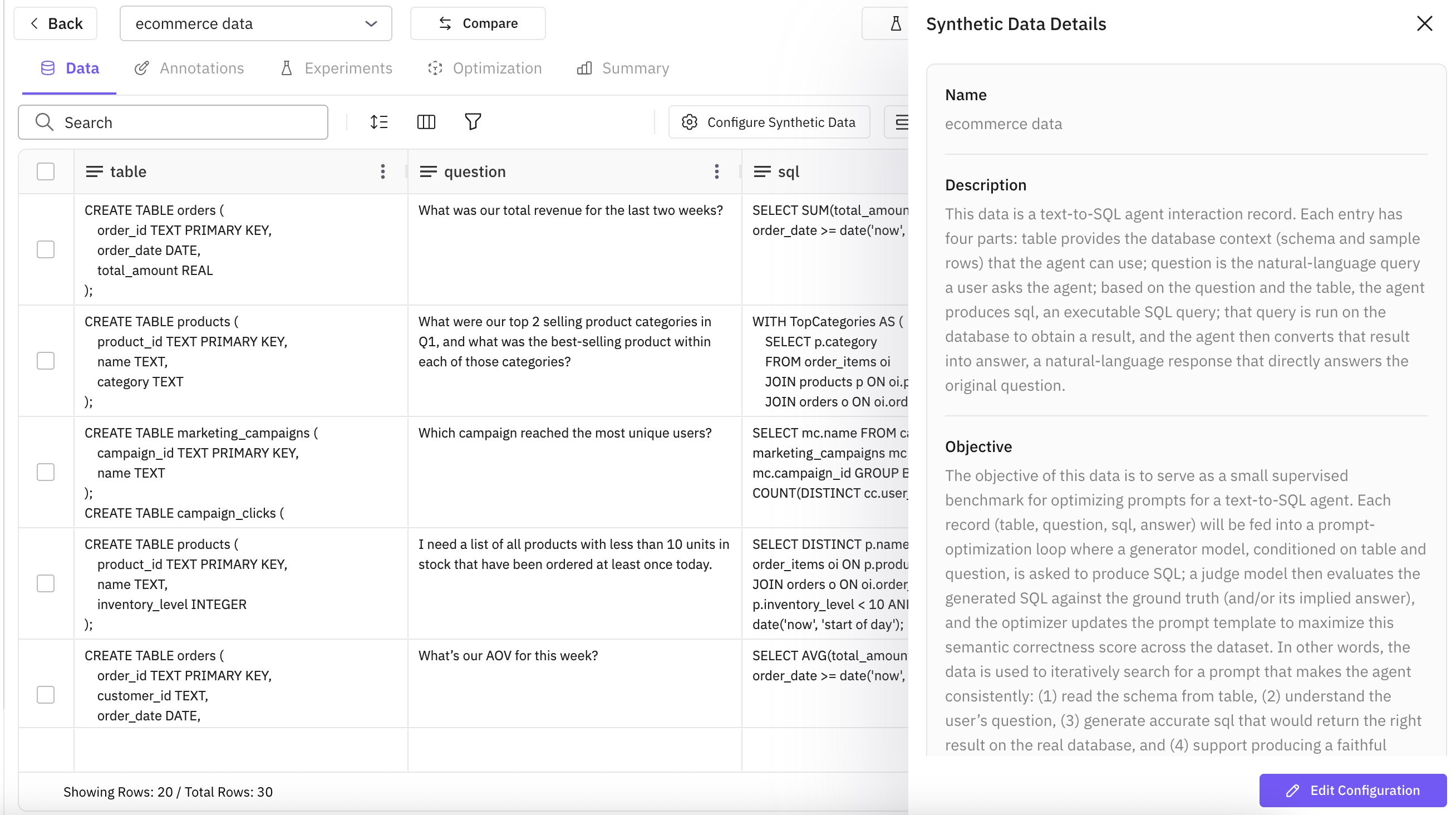
If you are not satisfied with the generated dataset, you can click on "Configure Synthetic Data" button. It will allow you to edit the fields and generate the dataset again.
Click on "Create Dataset" button to generate the dataset. Your synthetic dataset will be generated in a few seconds and will be available in your dataset [dashboard](https://app.futureagi.com/dashboard/develop).
If you are not satisfied with the generated dataset, you can click on "Configure Synthetic Data" button. It will allow you to edit the fields and generate the dataset again.
 ***
## Manually Create Dataset
Manually create dataset from scratch.
To proceed with creating dataset manually from scratch, provdide the name you want to assign and the number of columns and rows you want.
***
## Manually Create Dataset
Manually create dataset from scratch.
To proceed with creating dataset manually from scratch, provdide the name you want to assign and the number of columns and rows you want.
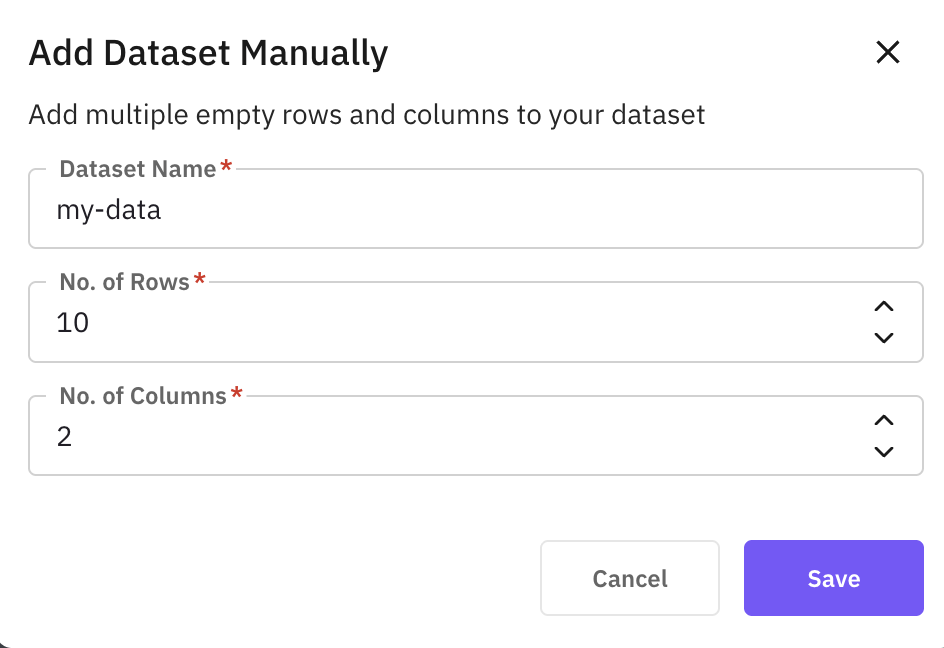 You will be greeted with an empty dataset with the name you assigned and with empty rows and columns.
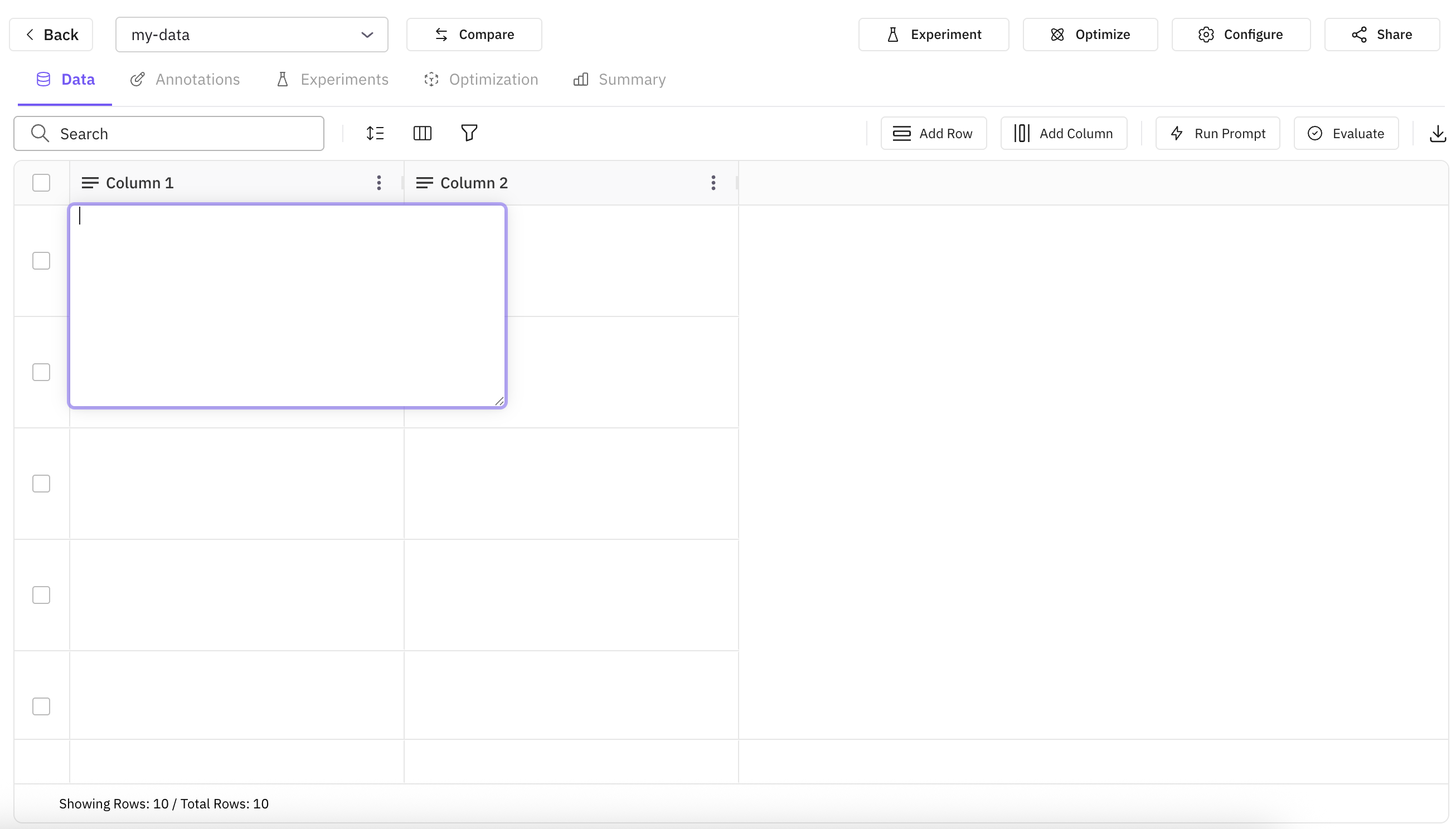
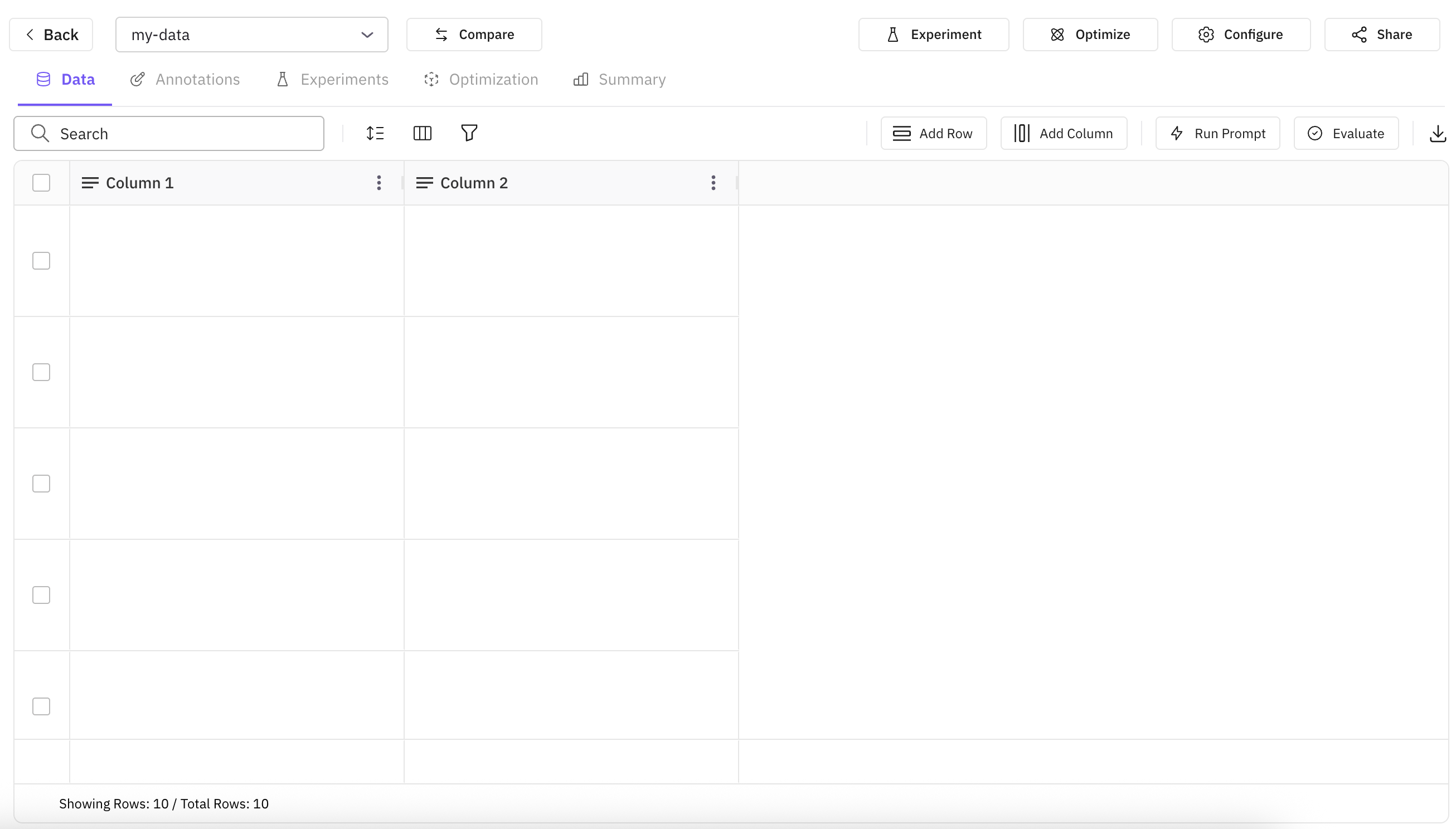 You can populate the dataset by double-tapping over the empty cell you want to populate. It will open an editor where you can provide the details you want to fill in that cell.
 ## Importing from Hugging Face
Search for the dataset you want to import from Hugging Face. You can even refine the search by using flters given on left side.
## Importing from Hugging Face
Search for the dataset you want to import from Hugging Face. You can even refine the search by using flters given on left side.
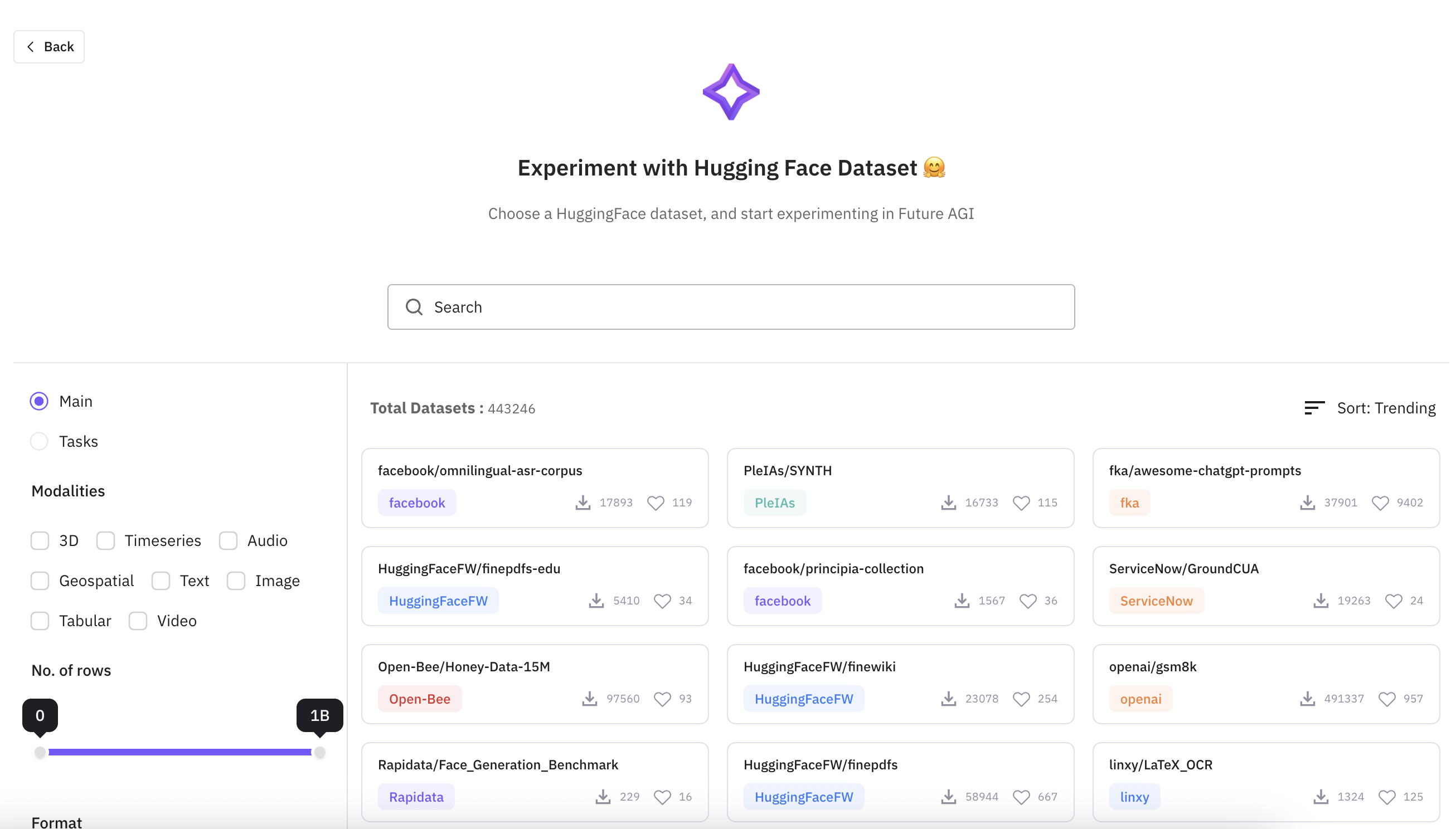 Once you have selected the dataset you want to import, click on that dataset and it will open a panel where you can select what subset and split you want to import.
You can also select the number of rows you want to import. By default, it will import all the rows.
Once you have selected the dataset you want to import, click on that dataset and it will open a panel where you can select what subset and split you want to import.
You can also select the number of rows you want to import. By default, it will import all the rows.
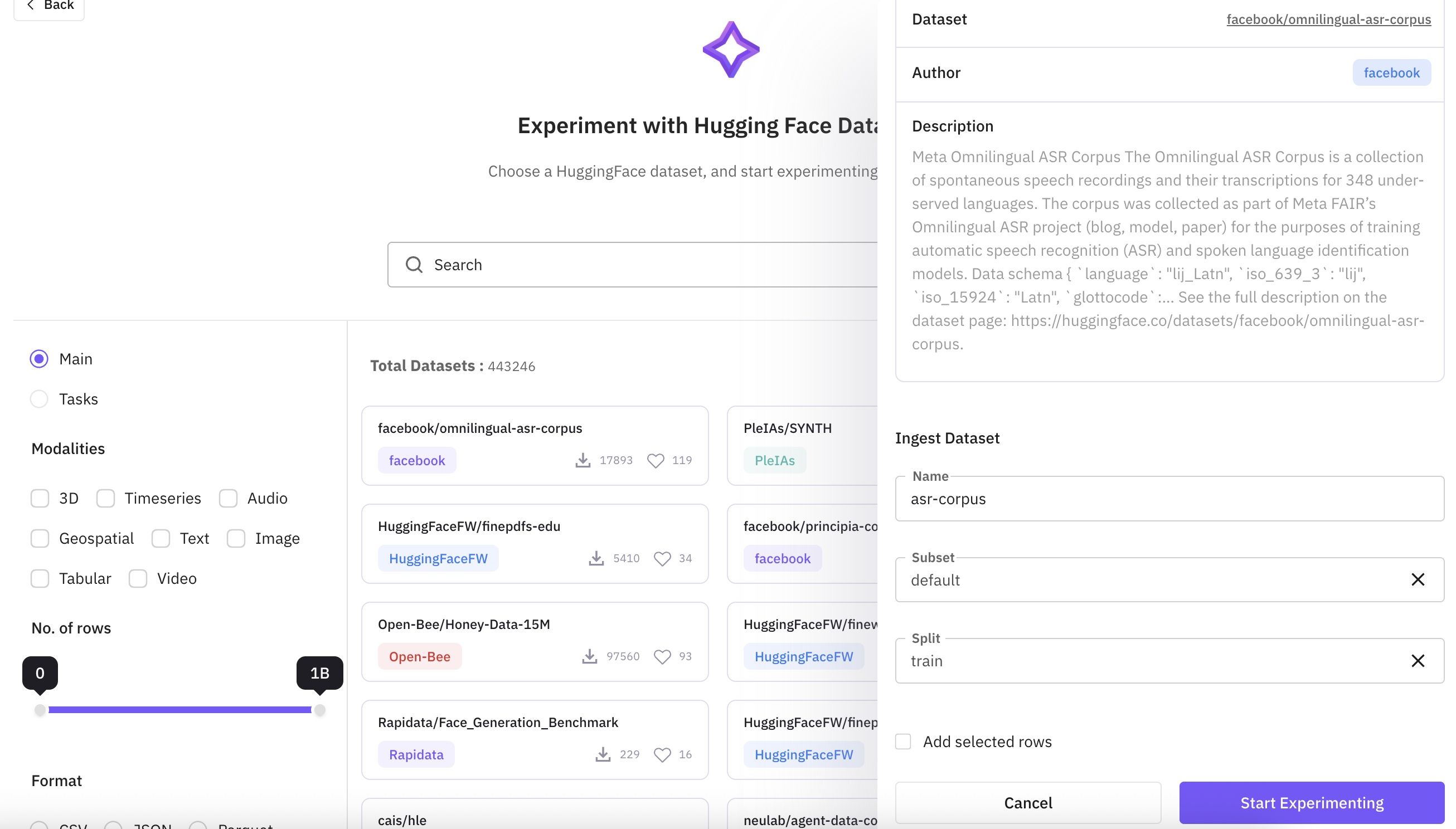 Click on "Start Experimenting" button and it willl start importing the dataset and you will be able to see it in your dataset [dashboard](https://app.futureagi.com/dashboard/develop).
***
## From Existing Dataset
You can create a subset from an existing dataset.
Assign a name to this dataset and choose the existing dataset from the dropdown you want to create a subset from.
Click on "Start Experimenting" button and it willl start importing the dataset and you will be able to see it in your dataset [dashboard](https://app.futureagi.com/dashboard/develop).
***
## From Existing Dataset
You can create a subset from an existing dataset.
Assign a name to this dataset and choose the existing dataset from the dropdown you want to create a subset from.
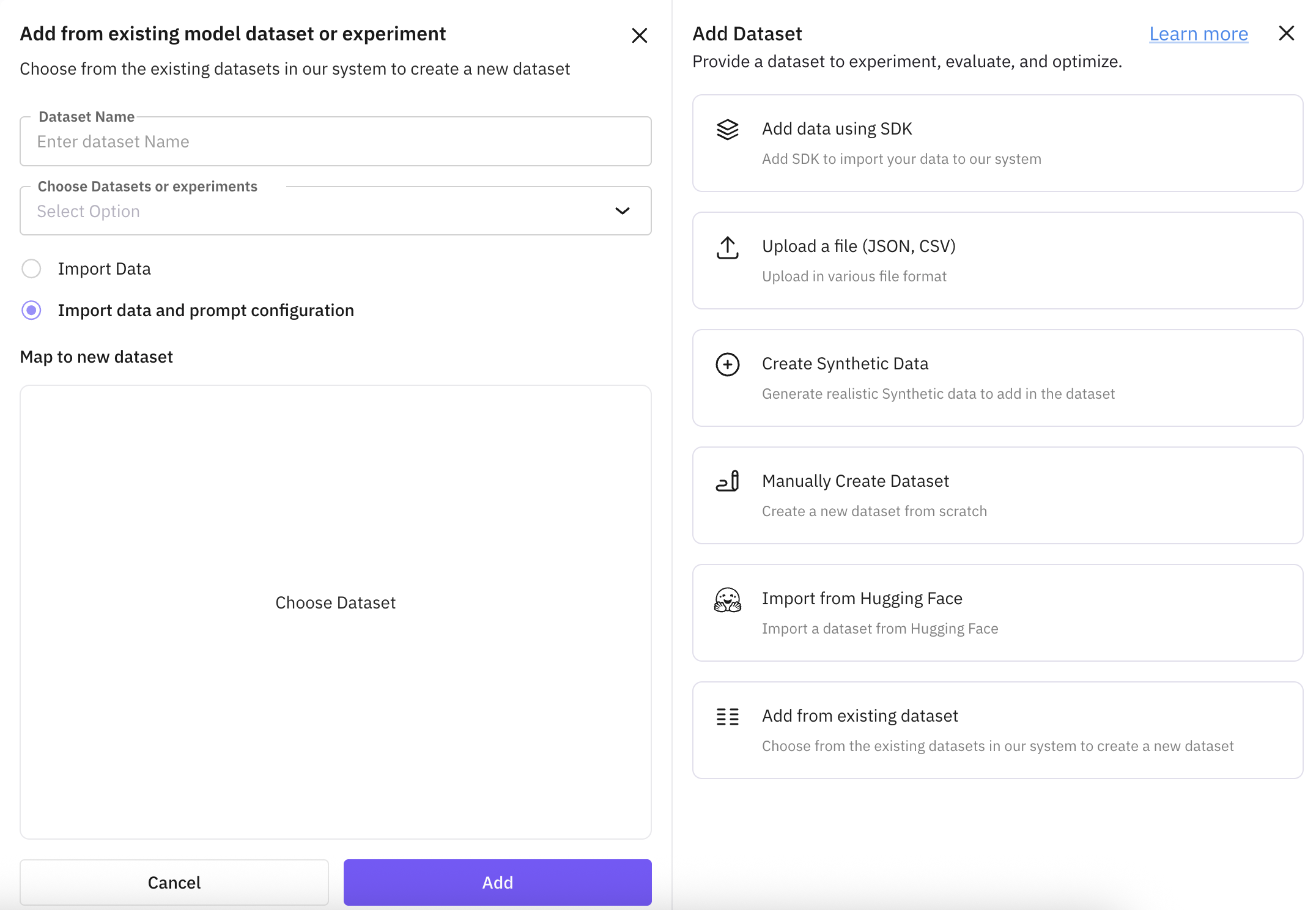 It allows you to import the dataset in two ways:
1. Import Data: It will only import the original columns from the existing dataset.
2. Import Data and Prompt Configuration: Along with original column, it will also import the prompt columns from that dataset.
You can choose what columns you want to use from that existing dataset and also you can assign a new name to the columns you want to use.
It allows you to import the dataset in two ways:
1. Import Data: It will only import the original columns from the existing dataset.
2. Import Data and Prompt Configuration: Along with original column, it will also import the prompt columns from that dataset.
You can choose what columns you want to use from that existing dataset and also you can assign a new name to the columns you want to use.
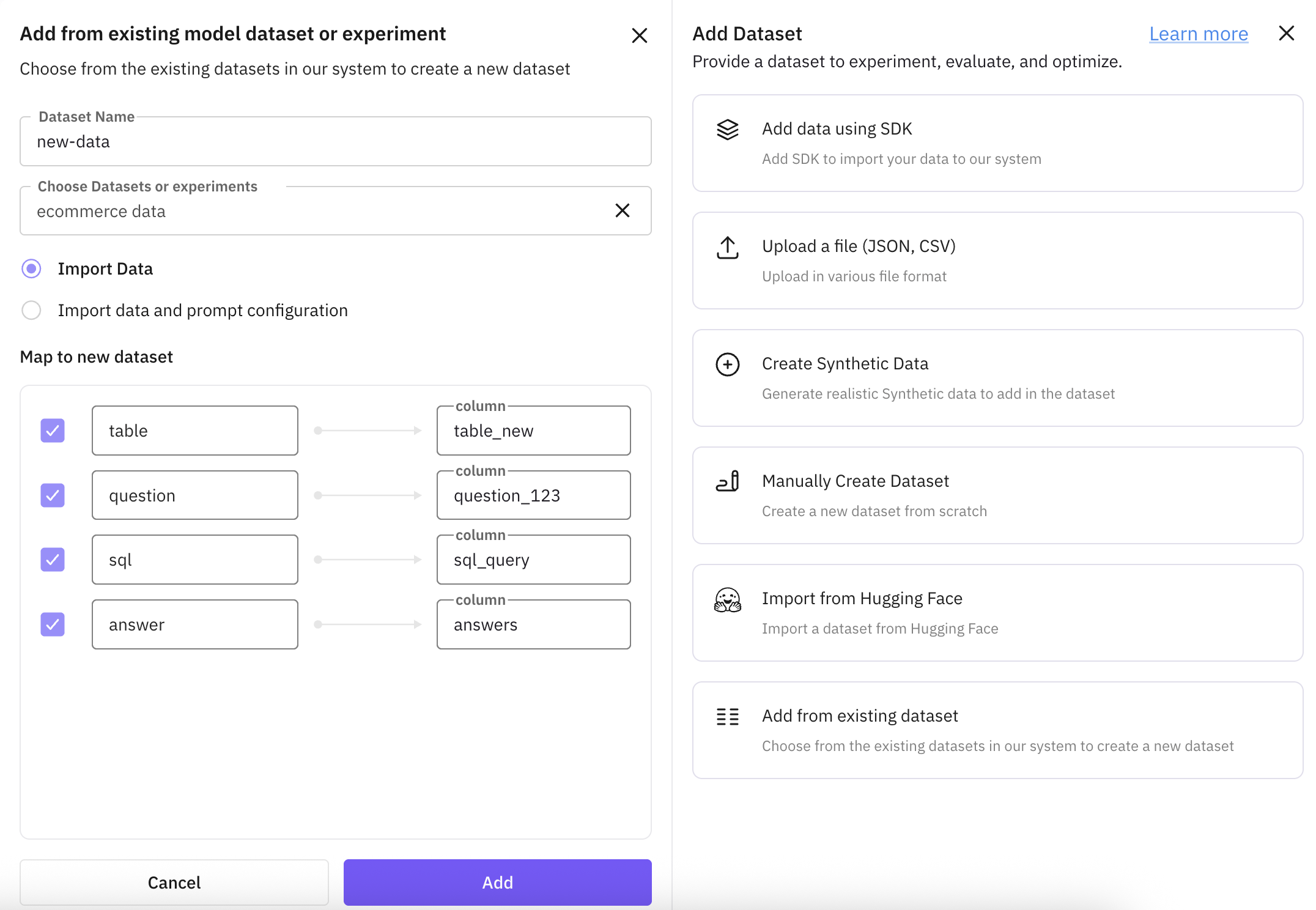 Click on "Add" button and it will create a new dataset in your dataset [dashboard](https://app.futureagi.com/dashboard/develop).