> ## Documentation Index
> Fetch the complete documentation index at: https://futureagi.mintlify.site/llms.txt
> Use this file to discover all available pages before exploring further.
# Agent Definition
> An agent definition is a configuration that specifies how your AI agent behaves during voice or chat conversations
***
**Chat vs Voice compatibility**
* For **chat simulations**, you must create an Agent Definition with **Agent Type = chat** and use it in a chat Run Test.
* **Voice Agent Definitions** (and voice-only fields like contact number) can’t be used for chat tests.
## Creating Agent Definition
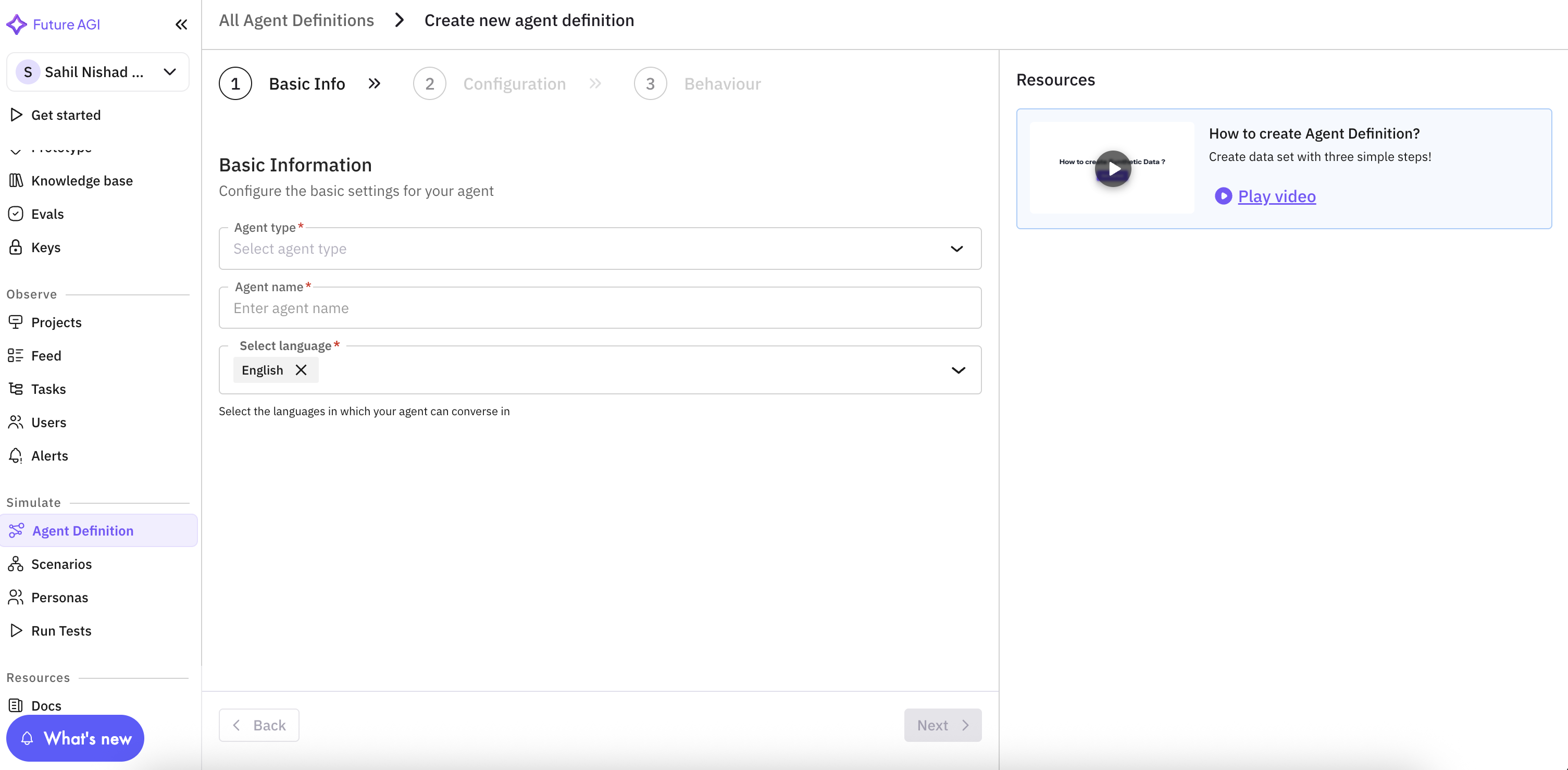
Navigate to Simulation section from the sidebar and click on "Agent Definition".
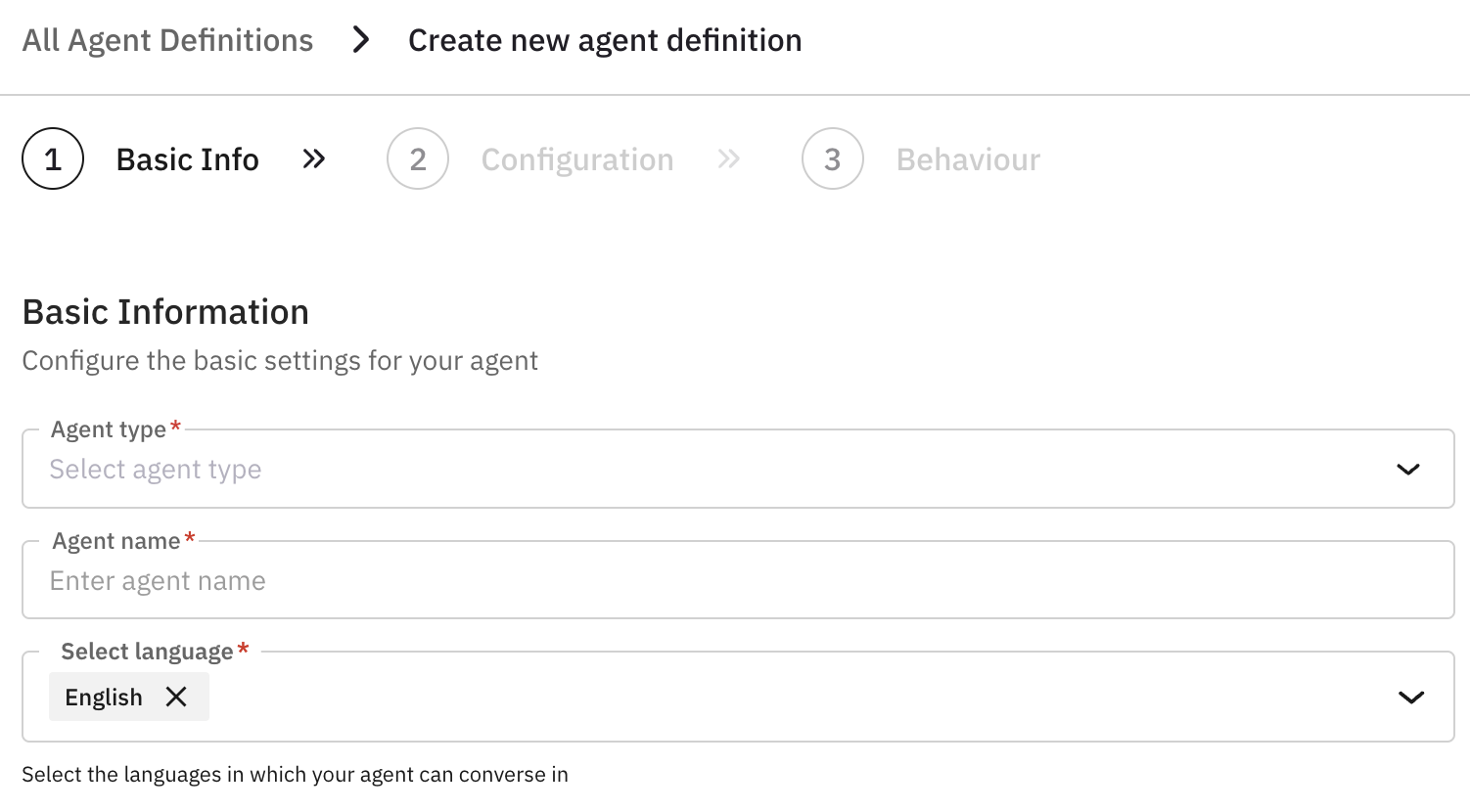
Provide required basic information about your agent.
| Field | Description |
| ---------- | --------------------------------------------------------------------------------------------- |
| Agent Type | Choose the type of your agent from the dropdown (voice or chat). |
| Agent Name | Assign a name to your agent. This will be used to identify your agent in the simulation. |
| Language | Choose the language you want your agent to converse in. You can select one or many languages. |
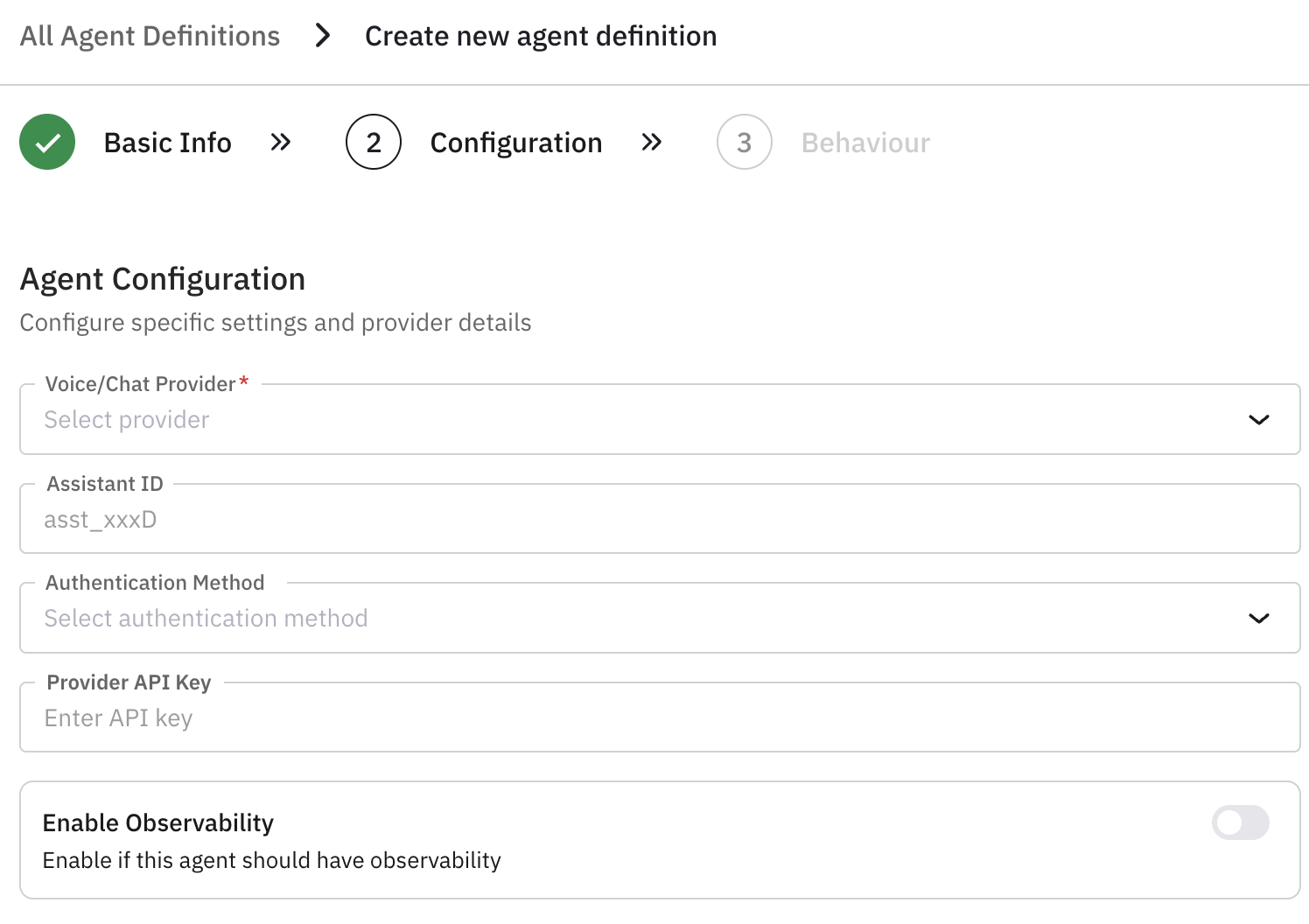
This section is useful if you want to setup voice observability for your agent.
| Field | Description |
| ---------------------- | ----------------------------------------------------------------------------------------------------------------------------------------- |
| Voice/Chat Provider | Choose the provider for your agent. Click [here](/future-agi/integrations/overview#voice) to find out more about the supported providers. |
| Assistant ID | Select the appropriate country code. |
| Connection Type | Choose the connection type for your agent. |
| Observability Provider | Choose the observability provider for your agent. |
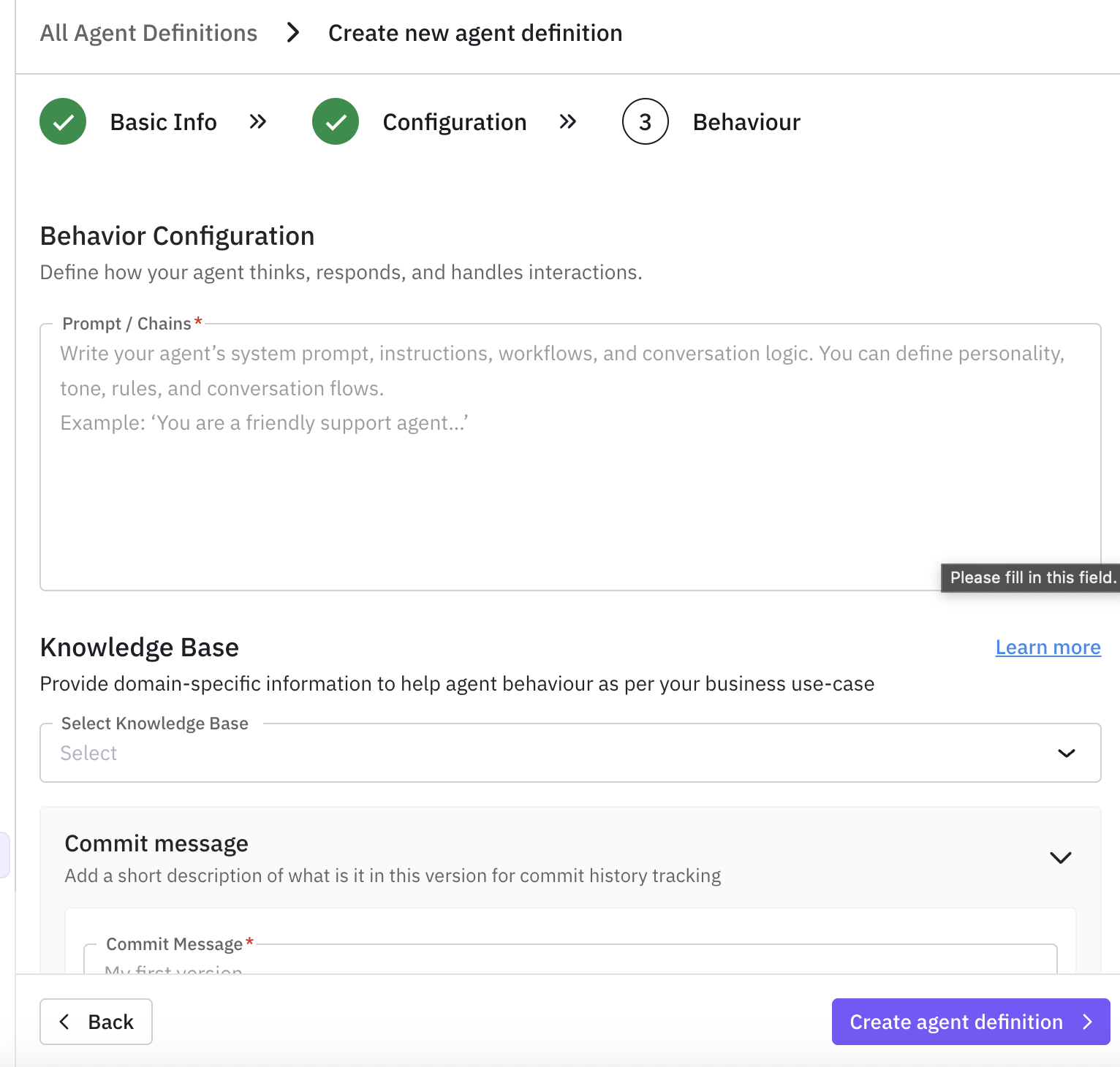
**Prompt/ Chains:** Add prompts, personality traits, and conversation flows that will guide your agent's behaviour.
If you have provided the API key and Assistant ID of appropriate provider, you can fetch the prompt fromt the provider here
**Language:** Then choose the primary language for your agent (e.g. English, Spanish, French, German, etc.).
**Knowledge Base (optional):** Provide domain-specific information to help agent behaviour as per your business use-case.
Click [here](/future-agi/get-started/knowledge-base/overview) to learn more about knowledge base.
This step is **voice-only**. If your Agent Type is **chat**, you can skip contact number and connection type.
**Contact Number**: Enter the phone number your agent will use.
**Country Code**: Select the appropriate country code.
**Connection Type**:
* **Inbound** (ON): Your agent will receive incoming calls from customers
* **Outbound** (OFF): Your agent will initiate calls to customers
Provide a descriptive commit message to track changes and maintain version history.
Enable this if you want to track your agent's performance.
After enabling, you will see a project created in your agent's name in [Observe](https://app.futureagi.com/dashboard/observe) section after running test.
***
## Voice Observability
***
## Agent Configuration and Version Management
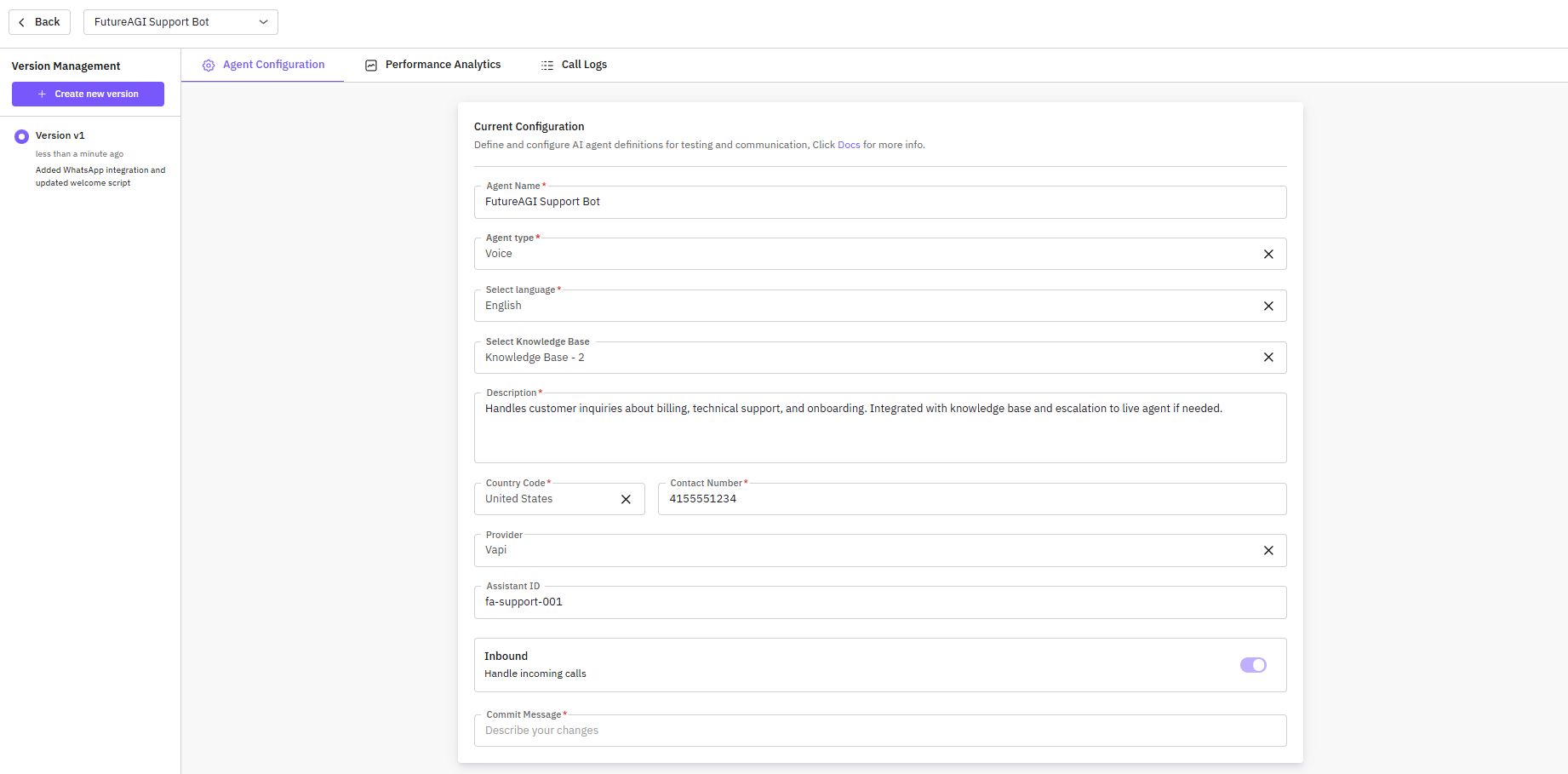
Users can edit the configuration here. Saving changes will create a new version, preserving all previous versions.
Agent definition versioning allows you to track changes made to your AI agents over time. Each version captures the agent’s configuration, behavior prompts, knowledge base connections, and other key settings. With versioning, you can safely experiment with updates, roll back to previous versions, and maintain an audit trail of your agent development.
The Agent Details UI is divided into key sections:
* **Agent Select Dropdown** – Switch between different agents quickly.
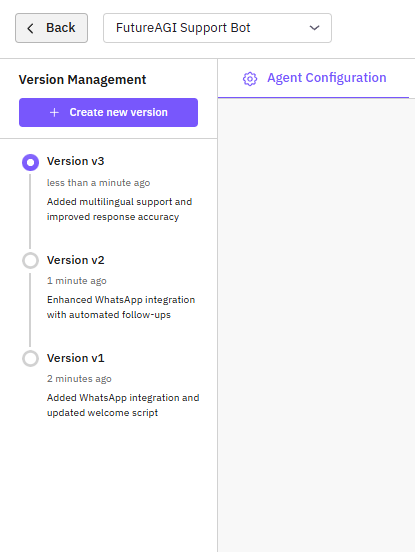
* **Version Management Section** – Located on the left, shows all versions with the latest at the top. Each version displays:
* Version number
* Timestamp
* Commit message
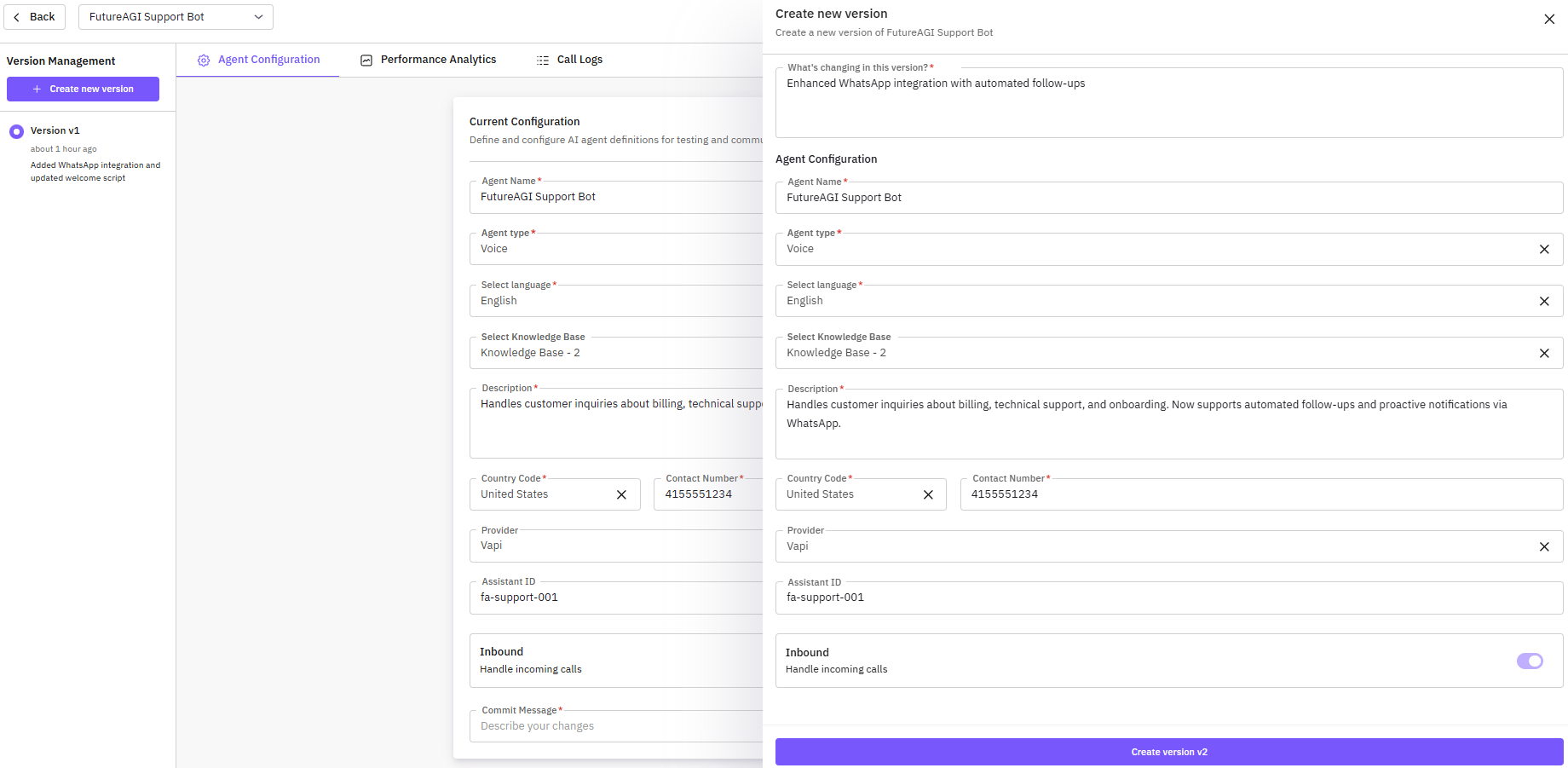
* **Create New Version Button** – Opens a side drawer to create a new version of the agent.
### How Versioning Agents Helps You
Versioning provides several benefits:
* **Experiment Safely** – Test new prompts, workflows, or provider settings without affecting the live agent.
* **Rollback Capability** – Restore any previous stable configuration if needed.
* **Audit & Compliance** – Maintain a history of agent modifications for regulatory or internal compliance.
### How to Create New Agent Versions
When creating a new version:
1. Click **Create New Version** in the version management section.
2. In the side drawer, complete:
* **Commit Message** – Describe the changes
* **Basic Information** – Agent name, description, etc.
* **Configuration Fields** – Behavior, voice, and knowledge base
3. Click **Save** to create the version.
Always provide clear commit messages to make version history meaningful.
### Switching Between Versions
1. In the Version Management section, click any existing version.
2. The UI will load the selected version for viewing, configuration, and further edits.
3. This allows users to quickly switch between different configurations of the same agent.
> **Note**
> Switching versions does not delete previous versions; all historical versions remain accessible.
***
## Perfomance Analytics
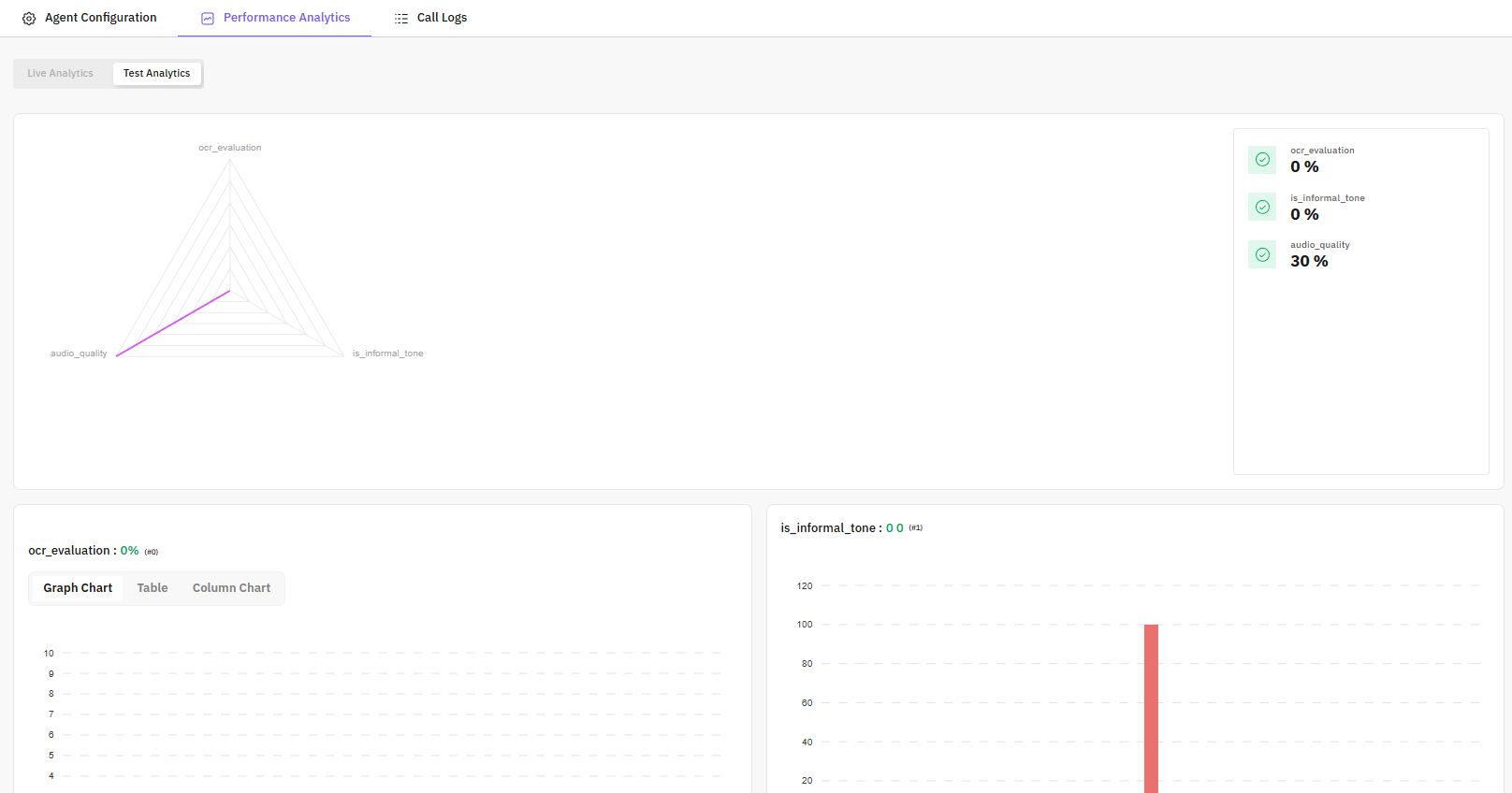
Shows the agent’s performance using graphs and metrics:
* Call success rates
* Average response times
* Evaluation scores across multiple metrics
* Error rates and anomalies
**Benefits:**
* Identify strengths and weaknesses in agent behavior
* Monitor improvements over time
* Quickly spot issues in production or testing
***
## Call Logs
Provides a detailed history of calls handled by the agent version:
* **Call Information** – Duration, participants, and call status (Completed, Failed, Dropped)
* **Evaluation Scores** – Scores for each call on defined metrics
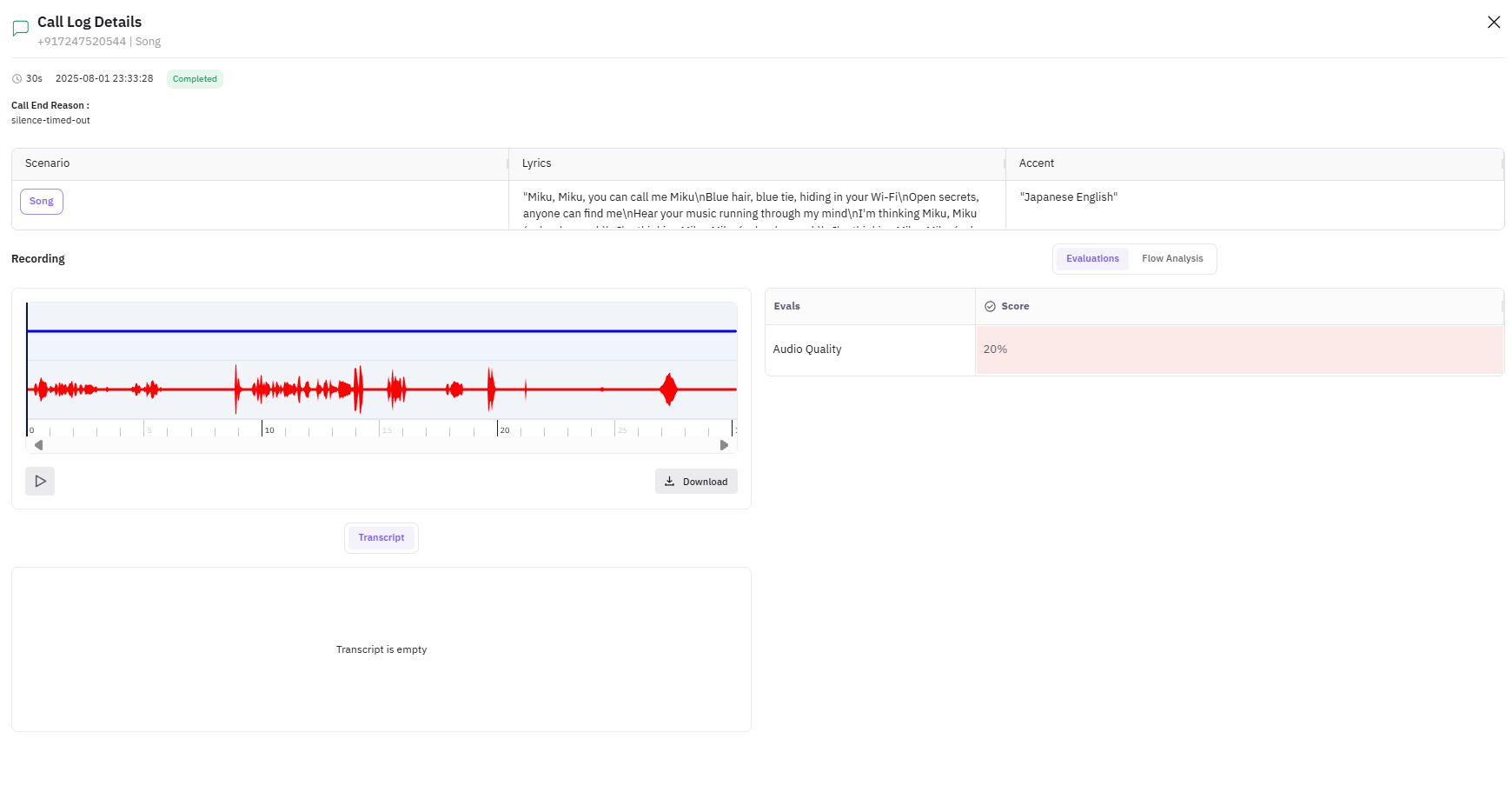
* **Call Details Drawer** – Click any call to open:
* Full conversation transcript
* Turn-by-turn analysis
* Evaluation results per metric
* Audio playback (if enabled)
* Key moments flagged by evaluations
***
 | Field | Description |
| ---------- | --------------------------------------------------------------------------------------------- |
| Agent Type | Choose the type of your agent from the dropdown (voice or chat). |
| Agent Name | Assign a name to your agent. This will be used to identify your agent in the simulation. |
| Language | Choose the language you want your agent to converse in. You can select one or many languages. |
| Field | Description |
| ---------- | --------------------------------------------------------------------------------------------- |
| Agent Type | Choose the type of your agent from the dropdown (voice or chat). |
| Agent Name | Assign a name to your agent. This will be used to identify your agent in the simulation. |
| Language | Choose the language you want your agent to converse in. You can select one or many languages. |
 | Field | Description |
| ---------------------- | ----------------------------------------------------------------------------------------------------------------------------------------- |
| Voice/Chat Provider | Choose the provider for your agent. Click [here](/future-agi/integrations/overview#voice) to find out more about the supported providers. |
| Assistant ID | Select the appropriate country code. |
| Connection Type | Choose the connection type for your agent. |
| Observability Provider | Choose the observability provider for your agent. |
| Field | Description |
| ---------------------- | ----------------------------------------------------------------------------------------------------------------------------------------- |
| Voice/Chat Provider | Choose the provider for your agent. Click [here](/future-agi/integrations/overview#voice) to find out more about the supported providers. |
| Assistant ID | Select the appropriate country code. |
| Connection Type | Choose the connection type for your agent. |
| Observability Provider | Choose the observability provider for your agent. |
 **Prompt/ Chains:** Add prompts, personality traits, and conversation flows that will guide your agent's behaviour.
 Agent definition versioning allows you to track changes made to your AI agents over time. Each version captures the agent’s configuration, behavior prompts, knowledge base connections, and other key settings. With versioning, you can safely experiment with updates, roll back to previous versions, and maintain an audit trail of your agent development.
The Agent Details UI is divided into key sections:
* **Agent Select Dropdown** – Switch between different agents quickly.
* **Version Management Section** – Located on the left, shows all versions with the latest at the top. Each version displays:
* Version number
* Timestamp
* Commit message
* **Create New Version Button** – Opens a side drawer to create a new version of the agent.
### How Versioning Agents Helps You
Versioning provides several benefits:
* **Experiment Safely** – Test new prompts, workflows, or provider settings without affecting the live agent.
* **Rollback Capability** – Restore any previous stable configuration if needed.
* **Audit & Compliance** – Maintain a history of agent modifications for regulatory or internal compliance.
### How to Create New Agent Versions
When creating a new version:
Agent definition versioning allows you to track changes made to your AI agents over time. Each version captures the agent’s configuration, behavior prompts, knowledge base connections, and other key settings. With versioning, you can safely experiment with updates, roll back to previous versions, and maintain an audit trail of your agent development.
The Agent Details UI is divided into key sections:
* **Agent Select Dropdown** – Switch between different agents quickly.
* **Version Management Section** – Located on the left, shows all versions with the latest at the top. Each version displays:
* Version number
* Timestamp
* Commit message
* **Create New Version Button** – Opens a side drawer to create a new version of the agent.
### How Versioning Agents Helps You
Versioning provides several benefits:
* **Experiment Safely** – Test new prompts, workflows, or provider settings without affecting the live agent.
* **Rollback Capability** – Restore any previous stable configuration if needed.
* **Audit & Compliance** – Maintain a history of agent modifications for regulatory or internal compliance.
### How to Create New Agent Versions
When creating a new version:
 1. Click **Create New Version** in the version management section.
2. In the side drawer, complete:
* **Commit Message** – Describe the changes
* **Basic Information** – Agent name, description, etc.
* **Configuration Fields** – Behavior, voice, and knowledge base
3. Click **Save** to create the version.
1. Click **Create New Version** in the version management section.
2. In the side drawer, complete:
* **Commit Message** – Describe the changes
* **Basic Information** – Agent name, description, etc.
* **Configuration Fields** – Behavior, voice, and knowledge base
3. Click **Save** to create the version.
 1. In the Version Management section, click any existing version.
2. The UI will load the selected version for viewing, configuration, and further edits.
3. This allows users to quickly switch between different configurations of the same agent.
> **Note**
> Switching versions does not delete previous versions; all historical versions remain accessible.
***
## Perfomance Analytics
1. In the Version Management section, click any existing version.
2. The UI will load the selected version for viewing, configuration, and further edits.
3. This allows users to quickly switch between different configurations of the same agent.
> **Note**
> Switching versions does not delete previous versions; all historical versions remain accessible.
***
## Perfomance Analytics
 Shows the agent’s performance using graphs and metrics:
* Call success rates
* Average response times
* Evaluation scores across multiple metrics
* Error rates and anomalies
**Benefits:**
* Identify strengths and weaknesses in agent behavior
* Monitor improvements over time
* Quickly spot issues in production or testing
***
## Call Logs
Shows the agent’s performance using graphs and metrics:
* Call success rates
* Average response times
* Evaluation scores across multiple metrics
* Error rates and anomalies
**Benefits:**
* Identify strengths and weaknesses in agent behavior
* Monitor improvements over time
* Quickly spot issues in production or testing
***
## Call Logs
 Provides a detailed history of calls handled by the agent version:
* **Call Information** – Duration, participants, and call status (Completed, Failed, Dropped)
* **Evaluation Scores** – Scores for each call on defined metrics
* **Call Details Drawer** – Click any call to open:
Provides a detailed history of calls handled by the agent version:
* **Call Information** – Duration, participants, and call status (Completed, Failed, Dropped)
* **Evaluation Scores** – Scores for each call on defined metrics
* **Call Details Drawer** – Click any call to open:
 * Full conversation transcript
* Turn-by-turn analysis
* Evaluation results per metric
* Audio playback (if enabled)
* Key moments flagged by evaluations
***
* Full conversation transcript
* Turn-by-turn analysis
* Evaluation results per metric
* Audio playback (if enabled)
* Key moments flagged by evaluations
***