

- Run Chat Simulations - Test your agent across multiple scenarios simultaneously
- Analyze Performance - Get comprehensive metrics and evaluation results
- Use Fix My Agent - Receive AI-powered diagnostics and actionable improvement suggestions
Prerequisites: Before running this cookbook, make sure you have:
- Created an agent definition in the Future AGI platform
- Created scenarios for chat-type simulations (not voice type)
- Created a Run Test configuration with evaluations and requirements

1. Installation
First, let’s install the required dependencies for chat simulation.- agent-simulate: The core SDK for simulating conversations with AI agents
- litellm: A unified interface for calling multiple LLM providers
- futureagi: The Future AGI platform SDK for managing prompts and evaluations
2. Import Required Libraries
Import all the necessary modules for the simulation:3. Setup API Keys
Configure your API keys to connect to the AI services. You’ll need:- Future AGI API keys for accessing the platform
- LLM provider API key (e.g., OpenAI, Gemini, Anthropic) for the agent’s model
Uncomment the provider you’ll be using. For example, if using GPT models, uncomment the
OPENAI_API_KEY line.4. Define Prompt Template and Run Test
Before running the simulation, you need to define:- Prompt Template: The system prompt and configuration for your chat agent
- Run Test Name: The test configuration created in the Future AGI platform
Create a Prompt Template
Navigate to the Prompt Workbench and:- Click on “Create Prompt”
- Choose a label (production, staging, or development)
- Name your template (e.g., “Customer_support_agent”)
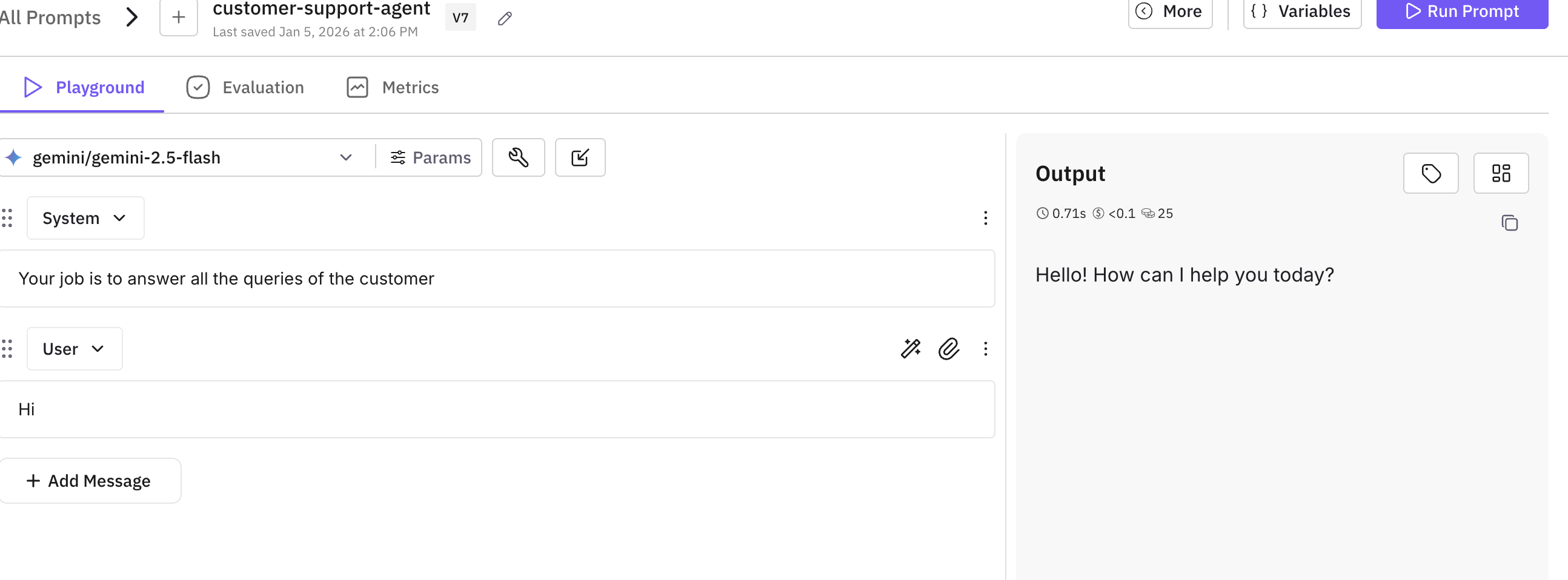
5. Configure and Fetch Agent
Now let’s set up an interactive configuration to fetch your agent’s prompt and create the simulation agent.Create the Agent Function
Define a function that creates your AI agent using LiteLLM:Fetch Prompt and Configure Agent
6. Run the Simulation
Now run the simulation with your configured agent and test scenarios:Understanding the Results
The simulation will:- Execute multiple test conversations concurrently
- Test your agent against predefined scenarios
- Generate a comprehensive report with metrics
- Upload results to your Future AGI dashboard
What’s Next? Now that you have simulation results, it’s time to analyze them and improve your agent. Instead of manually reviewing hundreds of data points, let AI do the heavy lifting with Fix My Agent.
7. Fix My Agent - Get Instant Diagnostics
Once your simulation completes, you’ll see a comprehensive dashboard with performance metrics and evaluation results. But here’s where it gets powerful: instead of manually analyzing data and debugging issues yourself, click the Fix My Agent button to get AI-powered diagnostics and actionable recommendations in seconds.How Fix My Agent Works
After analyzing your simulation results, Fix My Agent:- Analyzes: Reviews all conversations against your evaluation criteria and performance metrics
- Identifies: Pinpoints specific issues like latency bottlenecks, response quality problems, or conversation flow issues
- Prioritizes: Ranks suggestions by impact (High/Medium/Low priority)
- Recommends: Provides clear, actionable fixes you can implement immediately
- Generates: Optionally creates optimized system prompts you can copy directly into your setup
Key Features
Concurrent Testing
Run multiple conversations simultaneously to test at scale
Scenario-Based Testing
Test against predefined scenarios and edge cases
Automatic Evaluation
Get instant feedback on agent performance metrics
Fix My Agent
AI-powered diagnostics and actionable improvement recommendations
Best Practices
- Start Small: Begin with a low concurrency value (e.g., 5) and increase gradually
- Diverse Scenarios: Create test scenarios covering various user intents and edge cases
- Use Fix My Agent: After each simulation, check Fix My Agent for improvement suggestions
- Iterative Testing: Implement fixes, then re-run simulations to track improvements
- Monitor Metrics: Pay attention to evaluation metrics like task completion, tone, and response quality
- Use Labels: Leverage environment labels (dev, staging, production) to manage prompt versions
Troubleshooting
Connection Errors
Connection Errors
Ensure all API keys are correctly set and have proper permissions. Check your internet connection and firewall settings.
Prompt Not Found
Prompt Not Found
Verify the prompt template name and label exist in your Future AGI dashboard. Names are case-sensitive.
Simulation Timeout
Simulation Timeout
Reduce the concurrency value or check if your agent is taking too long to respond. Consider optimizing your prompt or model selection.
Model Errors
Model Errors
Ensure the LLM provider API key is valid and the model name is correct. Some models may require specific API access.
Next Steps
Fix My Agent Guide
Deep dive into Fix My Agent features and optimization
Voice Simulation
Learn how to simulate voice conversations
Advanced Evaluations
Master advanced evaluation techniques
Simulation Documentation
Read the detailed simulation documentation
Conclusion
You’ve now learned how to simulate and improve your AI chat agents using the Future AGI platform. This powerful workflow helps you:- Test at Scale: Run multiple concurrent simulations across diverse scenarios
- Get Instant Diagnostics: Use Fix My Agent to identify issues automatically
- Implement Fixes Fast: Follow actionable recommendations to improve quality
- Iterate Confidently: Validate improvements before deploying to production
- Maintain Quality: Continuously monitor and optimize agent performance