

What it is
An annotation queue is a managed campaign that groups items to annotate, assigns them to annotators, tracks progress, and enforces quality controls. Queues sit between labels (what to measure) and scores (the resulting data), providing the operational layer that turns annotation from an ad-hoc activity into a structured workflow.Queue lifecycle
A queue moves through a defined set of statuses:Item statuses
Each item in a queue has its own status:Assignment strategies
Assignment strategies control how items are distributed to annotators when they click Start Annotating.Reservation system
When an annotator opens an item, the system reserves it for a configurable timeout period. This prevents two annotators from working on the same item simultaneously.- Default timeout: 1 hour.
- Configurable range: 15 minutes to 4 hours.
- Expiry behavior: If the annotator does not submit or skip within the timeout, the reservation expires and the item returns to Pending status for another annotator to pick up.
Multi-annotator support
For tasks that benefit from agreement between multiple reviewers, set the Annotations Required field (1-10) when creating or editing a queue.- Each item must receive the configured number of complete annotations before it transitions to Completed.
- Different annotators independently annotate the same item — they do not see each other’s responses.
- The queue analytics tab shows inter-annotator agreement metrics once multiple annotators have scored the same items.
An item is considered fully annotated by a single annotator only when all labels attached to the queue have been scored. Partial submissions are saved but do not count toward the required annotation count.
Review workflow
Enable Requires Review on a queue to add a review step after annotation:1
Annotation
Annotators complete their work as usual. When all required annotations are submitted, the item moves to Pending Review instead of Completed.
2
Review
A designated reviewer opens the item, sees all submitted annotations, and either Approves (moves to Completed) or Rejects (sends back to Pending for re-annotation).
Guidelines
Each queue supports a Guidelines field — a markdown-formatted instruction document shown to annotators when they open the annotation workspace. Use guidelines to:- Define the annotation criteria and edge cases.
- Provide examples of correct and incorrect annotations.
- Specify when to skip an item.
- Link to external reference material.
Auto-completion
Items auto-complete when the following conditions are met:- All labels attached to the queue have been scored for the item.
- The required number of annotators (set by Annotations Required) have each fully annotated the item.
- If Requires Review is enabled, the reviewer has approved the item.
Creating a queue
1
Open the Queues tab
Navigate to Annotations in the left sidebar and select the Queues tab. Click Create Queue.
2
Configure the queue
Fill in the queue settings: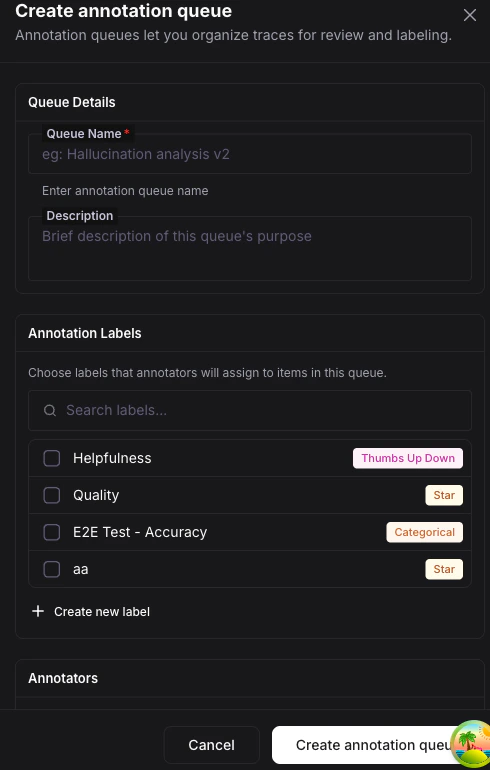
3
Add items
Items can be added from Observe (traces, spans, sessions), Datasets (rows), Prototypes (runs), or Simulations (executions). Select items in their respective views and click Add to Queue.
What you can do next
Annotation Labels
Learn about the five label types you can attach to queues.
Scores
Understand the data model behind every annotation.
Quickstart
Walk through the full annotation flow end to end in 5 minutes.